
Create window
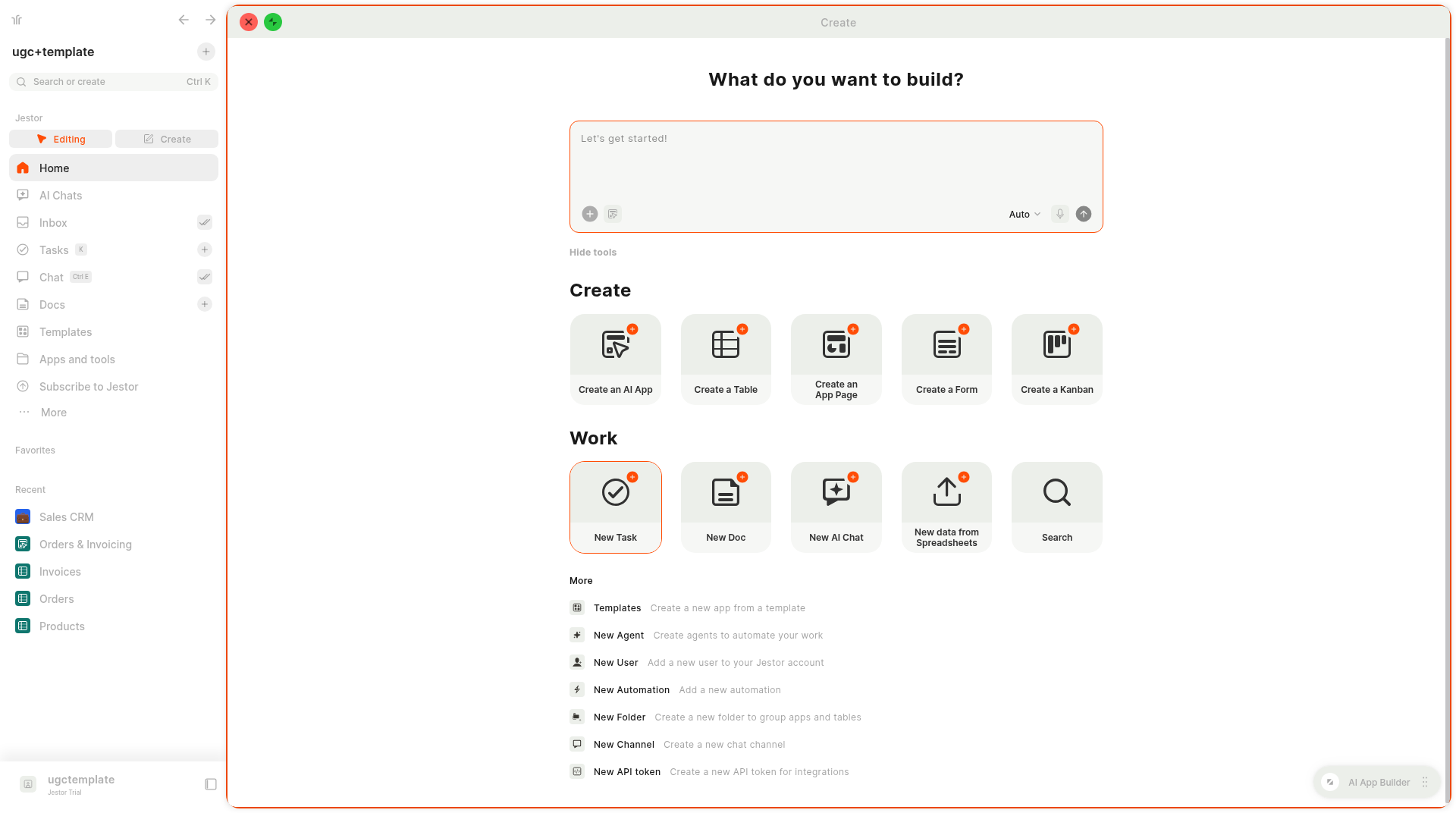
The Create window is where you start anything new in Jestor: describe an app for the AI App Builder or pick a table, form, kanban, task, doc and more.
In short
- What it is: one window to create anything in Jestor, from a complete AI app to a table, form, task or automation.
- How to open it: press C anywhere in Jestor, or click Create in the left sidebar.
- Fastest path: type what you need under "What do you want to build?" and the AI App Builder builds it.
- Other shortcuts: click More tools to see the Create, Work and More groups.
What is it
The Create window is the starting point for building in Jestor. At the top, a single box asks "What do you want to build?". Describe your process and the AI App Builder creates the app for you. Below it, More tools gives you one-click shortcuts to create tables, app pages, forms, kanbans, tasks, docs, agents, users, folders and more, so you never have to hunt through menus.
How to access
- Press C anywhere in Jestor.
- Click Create in the left sidebar, next to Editing. The Create window opens in full screen.
- On Home, the AI Builder section has the same "What do you want to build?" box.
- In the Action Bar, choose Create (Start building).
Options
The AI box
| Control | What it does |
|---|---|
| Text box ("Let's get started!") | Describe the app you want. The AI App Builder is the default agent. |
| Agent selector | Shows the selected agent, for example Agent: AI App Builder. |
| + | Add context (Files, Tables, Apps, AI apps), pick an agent (AI App Builder or Block Composer) or create a new agent. |
| @ and a number | Shows how many tables the chat uses as context. Click it to see the Table context list. |
| Auto | Opens the Mode menu: Auto (Balanced), selected by default, or Saver (Cheaper). |
| Microphone | Record audio to describe your app by voice. |
| Send | Sends your request. It stays disabled while the box is empty. |
More tools
Click More tools to show the shortcuts and Hide tools to collapse them.
| Group | Shortcuts |
|---|---|
| Create | Create an AI App, Create a Table, Create an App Page, Create a Form, Create a Kanban |
| Work | New Task, New Doc, New AI Chat, New data from Spreadsheets, Search |
| More | Templates, New Agent, New User, New Automation, New Folder, New Channel, New API token |
Each item in the More group has a short description in the window:
- Templates: create a new app from a template.
- New Agent: create agents to automate your work.
- New User: add a new user to your Jestor account.
- New Automation: add a new automation.
- New Folder: create a new folder to group apps and tables.
- New Channel: create a new chat channel.
- New API token: create a new API token for integrations.
Window size
Click the green button at the top left to maximize the window. The red button closes it.
How to use
- Press C, or click Create in the left sidebar.
- To build with AI, describe your process in the box and click send. The AI App Builder starts building and you can follow along in the chat.
- To create something specific, click More tools and pick a shortcut, such as Create a Table or New Task.
Keep in mind
- The AI App Builder is the recommended way to build a complete app. Use the other shortcuts when you need one specific structure.
- The AI building agents build apps, tables and pages. They don't create automations. Use New Automation or the MCP for that.
Prefer the keyboard?C opens the Create window from anywhere, and the Action Bar lets you search or create without leaving the page you're on.
Related pages
- AI App Builder: build a complete app from a description.
- Block Composer: build with Jestor's no-code components from a description.
- AI Chats: find the chats you started from the Create window.
- Action Bar: search and run commands.
- Tables, Apps and App Pages, Super Forms, Smart Kanban, Tasks, Automation.
FAQ
How do I open the Create window?
Press C anywhere in Jestor, or click Create in the left sidebar.
Which agent does the Create window use by default?
The AI App Builder. You can switch to the Block Composer with the + button.
Where are the shortcuts for tables, forms and kanbans?
Click More tools below the AI box. They are in the Create group.
Can I create an automation from the Create window?
Yes. Click More tools and choose New Automation in the More group. The AI building agents themselves don't create automations.
Can I import a spreadsheet from here?
Yes. Click More tools and choose New data from Spreadsheets in the Work group.
Updated 5 days ago