
Attachment
The Attachment field lets users upload and store files directly in a record — including images, PDFs, spreadsheets, documents, and more.
For instructions on how to access field types or how to add one, see Field Types.
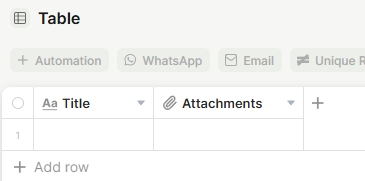
Capabilities
- Upload one or more files of any type to a record, including images, PDFs, and documents
- Preview image files as thumbnails directly in the table
- Download or delete individual files from a record
- Restrict the field to a single file upload per record
- Use hover Quick Actions (Download, Open in new tab, Preview) directly on the file thumbnail, without opening the record first
Use Cases and Examples
- Sales teams can attach signed contracts or proposals directly to a client record, keeping all relevant documents in one place.
- HR teams can use the field to collect onboarding documents, such as ID copies or signed agreements, per employee record, with the Required field option ensuring nothing is missed.
- Support teams can allow customers to upload screenshots or error logs when submitting a ticket, giving agents the context they need without back-and-forth.
- Operations teams can attach delivery receipts, invoices, or inspection photos to process records, with image thumbnails making it easy to review files at a glance.
How to use
Step 1 — Open a record and click the Attachment field.
Step 2 — Select one or more files from your device to upload.
Step 3 — Uploaded files appear as thumbnails (for images) or file icons, and can be downloaded or deleted individually.
Field options
- Image size: Controls the display size of image previews within the record. Options compress images for better performance without affecting the original file.
- Only allow 1 file upload: Restricts the field to a single file per record. When enabled, uploading a new file replaces the existing one.
- Tooltip: Adds a helper text visible when hovering over the field name.
- Required field: Makes the field mandatory before a record can be saved.
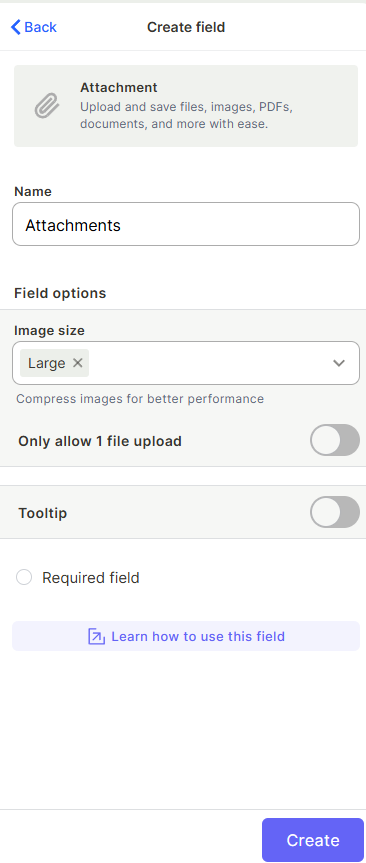
Field options
- Image size: Controls the display size of image previews within the record. Options compress images for better performance without affecting the original file.
- Only allow 1 file upload: Restricts the field to a single file per record. When enabled, uploading a new file replaces the existing one.
- Tooltip: Adds a helper text visible when hovering over the field name.
- Required field: Makes the field mandatory before a record can be saved.
Keep in Mind
- The Attachment field stores files but does not parse or extract their content. You cannot filter, search, or use field values based on what is written inside an uploaded file.
- Changing the Image size setting affects only how images are displayed in the interface, it does not change the resolution or size of the original uploaded file.
- Enabling Only allow 1 file upload does not delete previously uploaded files automatically until a new file is uploaded to replace it, it only blocks adding a second file alongside the existing one.
- The Required field option only blocks saving the record without a file, it does not restrict which file types or how many files can be added.
- Quick Actions (Download, Open in new tab, Preview) are display shortcuts only, they do not create a copy of the file inside Jestor, move the file, or change the original record.
- Deleting a file from the field removes it from the record, it does not automatically remove it from other records or fields where the same file may have been attached separately.
- The field does not automatically compress or convert file formats on upload, only image previews are resized for display purposes.
FAQ
1 - Can I upload multiple files in the same field?
Yes, by default the field accepts multiple files. To restrict it to one file at a time, enable the Only allow 1 file upload option in the field settings.
2 - What file types are supported?
The field accepts any file type, including images (PNG, JPG, GIF), documents (PDF, DOCX, XLSX), and others.
3 - Can I search or filter records based on the content of an attached file?
No. The field only stores the file, it does not read or index its content, so you cannot filter or search based on what's written inside the file.
4 - Does downloading a file through the hover Quick Action remove it from the record?
No. Downloading only saves a copy to your device, the original file stays attached to the record.
5 - If I enable "Only allow 1 file upload" after already having multiple files, what happens?
The existing files are not deleted automatically. The restriction applies going forward: the next time a new file is uploaded, it will replace the current one.
ao inves do how to set it up, faz uma parte de como usar quick actions, nao muito extensa
Updated 2 months ago