
Email Indicator
The Email Indicator field shows how many emails a record's conversation has and, by color, who sent the last one. You can also show how many of those replies came from a person and how many came from AI.
In short
- What it is: a table field that summarizes the email conversation linked to a record: the message count and who sent the last message.
- How to add it: open the table, click New Field (or press F) and choose Email Indicator.
- What the colors mean: the colors show who sent the last message. Green means internal (a person on your team), yellow means external (the contact or customer), orange means the internal reply was sent by AI, and gray means nobody has sent a message yet.
- Show response per type: when this option is on, the field also shows a counter that splits replies sent by a person from replies sent by AI. When it is off, only the total is shown.
- Keep in mind: the field only fills if it exists on the table, and it stays empty until there are messages.
What is it
The Email Indicator is the email equivalent of the WhatsApp Indicator. It does not send or receive email. It only displays the state of the conversation already linked to the record, so you can scan a table or a kanban and see which tickets are waiting for a reply, which ones your team already answered, and which last reply was sent by AI.
In the field picker, it is described as: "See how many messages you've exchanged and which one was the last to respond."
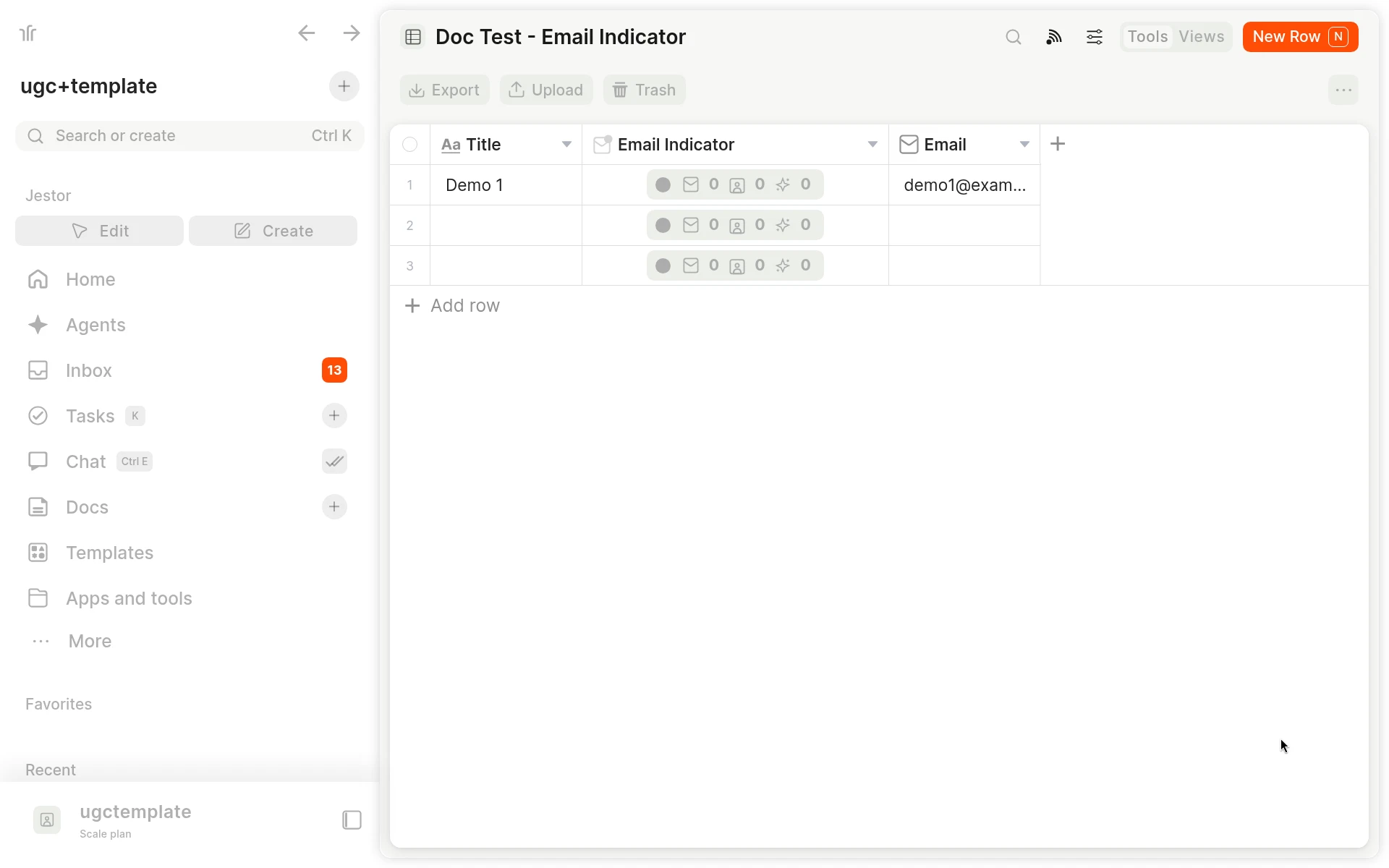
Email Indicator column in a table
The color follows who sent the last message: internal (your team), external (the contact or customer), or AI when the internal reply was sent by AI. The total count is the number of messages in that conversation. If you turn on Show response per type, the field also shows two counters, one for human replies and one for AI replies. Those counters split AI from human, not received from sent.
For instructions on how to access field types or how to add one, see Field Types.
When to use
- Support inboxes: scan the list or kanban and see which conversations are waiting for a reply, without opening each record.
- AI and human coverage: see when the last reply was sent by the Email Agent and, with Show response per type, how much of the conversation was handled by AI versus a person.
- Team follow-up: filter or sort records by status, for example to work first on emails that were received and not yet answered.
How to add
- Open the table.
- Click New Field, or press F.
- Select Email Indicator as the field type.
- Give the field a name.
- Optionally, turn Show response per type on or off in the field options. It controls whether the AI versus human counter is visible. This option is available both when you create the field and when you edit it.
- Click Create.
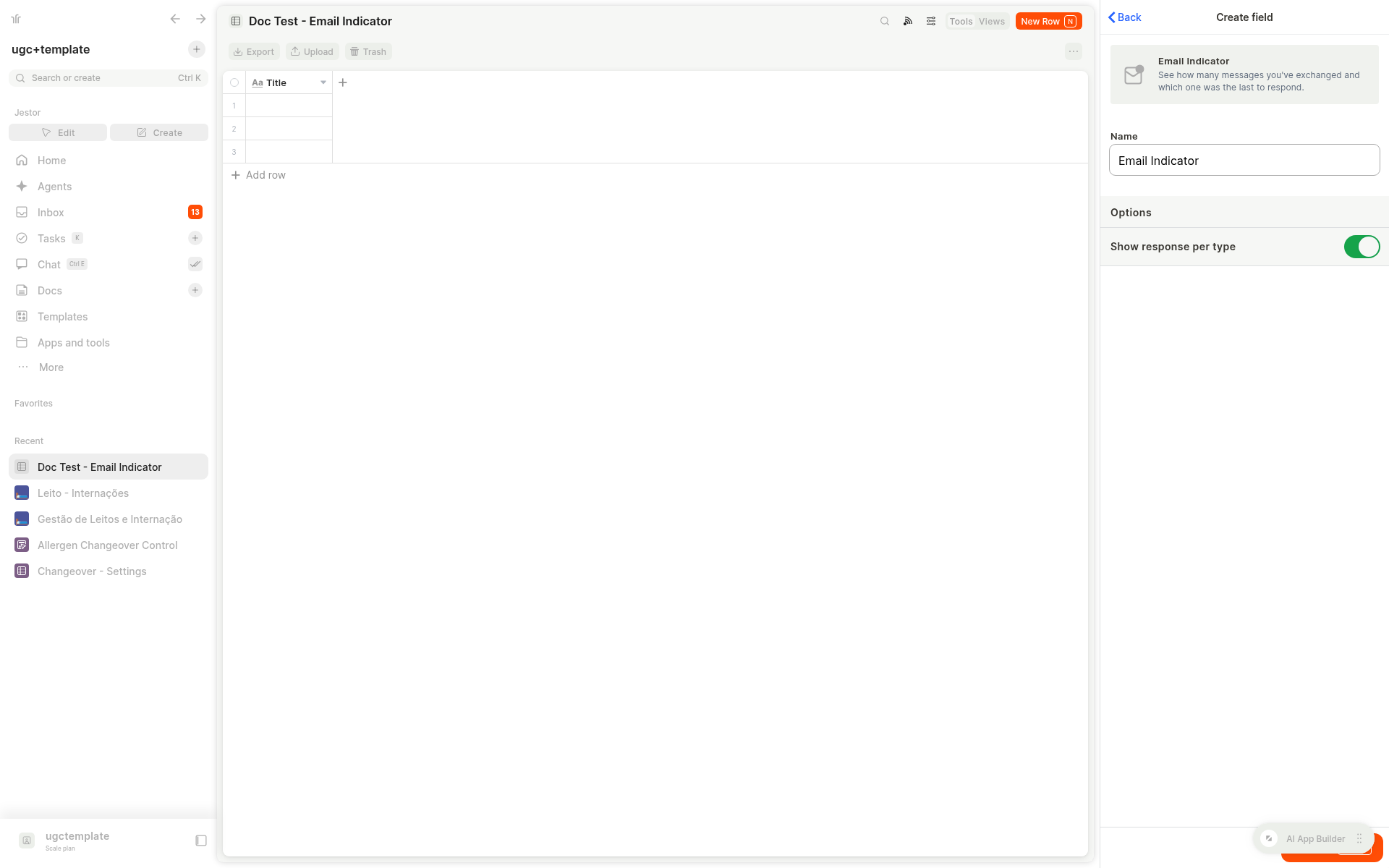
The field starts empty and only starts showing a value after there are messages in the record's email conversation.
States and colors
The Email Indicator uses the same color language as the WhatsApp Indicator, with one extra state for AI:
| Color | What it means |
|---|---|
| Green | Internal: a person on your team sent the last message. |
| Yellow | External: the contact or customer sent the last message (an email was received). |
| Orange | Internal: AI sent the last message. |
| Gray | Nobody has sent a message in that conversation yet. |
Receiving an email sets the field to external. Sending a reply sets it to internal (a person) or AI, depending on who wrote the reply.
Options
- Show response per type: when this option is on, the field shows the AI versus human counter next to the total. When it is off, only the total number of messages is shown. This option is available both when you create the field and when you edit it.
The per-type counters split replies sent by AI from replies sent by a person. They do not split received messages from sent messages.
Filters and sorting
You can filter and sort records by the Email Indicator.
Filters
- Received (
inbound): external, the last message is an email that arrived. - Sent (
outbound): internal, the last message was sent by your team, whether by a person or by AI. - Sent by a person (
outbound_standard). - Sent by AI (
outbound_ai_agent).
Sorting
A descending sort puts received conversations first, so the ones waiting for a reply surface at the top.
For API and MCP
The field type is emailIndicator. The field's fixed key is email_indicator.
The value includes:
total: the number of messages in the conversationdirection:truemeans the last message was receivedsender_type:ai_agentwhen AI sent the last messagemessages: counters forstandard(human) andai_agent(AI)
The state values are inbound, outbound_standard and outbound_ai_agent. The outbound filter includes both sent states.
The field is only updated if it already exists on the table. It does not get created automatically.
Keep in mind
- The Email Indicator does not send or receive email. It only displays information about the conversation.
- It does not show the content of individual messages, only the count, the last-message state and, if enabled, the AI versus human counters.
- The field only fills if it exists on the table. Add it first. Until there are messages, it stays empty.
- The per-type counters split AI from human, not received from sent.
Looking for the WhatsApp version?The WhatsApp Indicator works the same way for WhatsApp conversations. Orange and the per-type counters are specific to the Email Indicator.
Related pages
- WhatsApp Indicator: the same kind of indicator for WhatsApp conversations.
- Email Agent: the AI agent that can reply to emails and, when it does, sets the indicator to orange.
- Email Ticket: how to activate table email and keep the conversation inside the record.
- Field Types: every field type in Jestor.
FAQ
What does the orange color mean?
Orange means the last message was an internal reply sent by AI, for example a reply from the Email Agent.
What do the green, yellow and gray colors mean?
The colors show who sent the last message. Green means internal (a person on your team). Yellow means external (the contact or customer). Gray means nobody has sent a message yet.
What does Show response per type do?
When it is on, the field shows a counter that splits replies sent by a person from replies sent by AI, in addition to the total. When it is off, only the total is shown.
Do the extra counters show received versus sent?
No. They split AI from human. Received versus sent is what the color (and the filters) represent.
Does the field appear automatically?
No. It only fills if it already exists on the table. Add an Email Indicator field first. It stays empty until the record has email messages.
Can I filter or sort by this field?
Yes. You can filter by received, sent (person or AI), sent by a person, or sent by AI. A descending sort puts received conversations first.
Does the indicator update on its own?
Yes. It updates when an email is received or when a reply is sent, and it follows whether the reply was written by a person or by AI.
Does the Email Indicator send or receive email?
No. It only displays information about the conversation already linked to the record.
Updated about 7 hours ago