
Send a Prompt and Get an Answer (Gemini)
Send a text prompt to Google Gemini directly from an automation and save the AI's response into a field in your table. Use it to generate summaries, classify records, rewrite content, or answer questions based on your data — all automatically.
When to use
- Automatically summarize a long text field when a record is created or updated
- Classify or categorize records based on their content (e.g., label a support ticket by urgency)
- Generate a draft response, description, or suggestion based on field values
- Extract structured information from unstructured text stored in a field
How to configure
The examples below use When a new record is created as the trigger. The action configuration is the same regardless of which trigger you choose.
Step 1 — Create a new automation
This page covers only the Send a prompt and get an answer (Google Gemini) action. For instructions on how to access automations and create a new automation, see the Automations page.
Step 2 — Set the trigger
Under When, select your trigger. For this example, select When a new record is created.
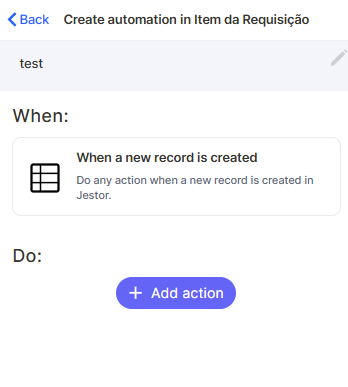
Step 3 — Add the Gemini action
Under Do, click + Add action. In the search bar, type send a prompt gemini and select Send a prompt and get an answer.
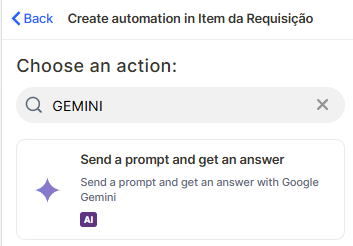
Step 4 — Connect your Google account
The action requires a Google Gemini connection. Click Log in with Google and authorize access. This only needs to be done once per workspace.
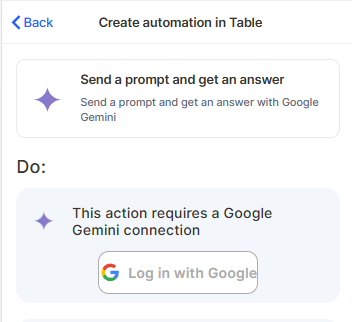
Step 5 — Choose tab
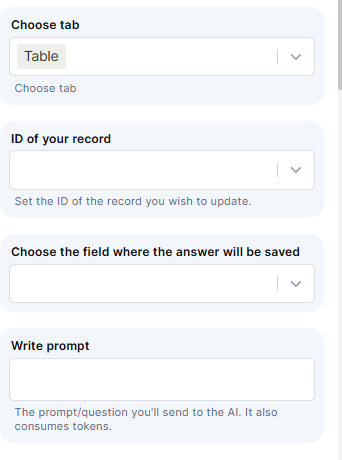
In the Choose tab dropdown, select the table whose record you want to update with the AI response. This is usually the same table where the automation lives.
Step 6 — ID of your record
In the ID of your record field, select the field that holds the record's ID. This tells Jestor which record to write the response to.
Step 7 — Choose the field where the answer will be saved
Select the field in your table where Gemini's response will be stored. This field must already exist in the table — the automation will not create it automatically. Use a Long Text field for most use cases.
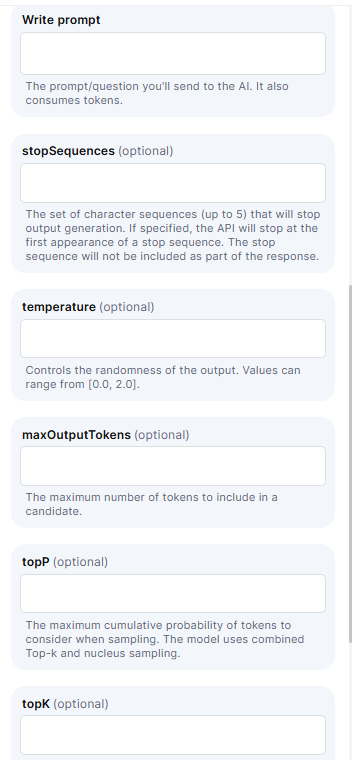
Step 8 — Write prompt
Write the prompt you want to send to Gemini. You can reference field values from the current record using dynamic variables — for example: Summarize the following text: followed by the field variable inserted via the dynamic selector inside the prompt field.
Step 9 — Advanced settings (optional)
The following parameters are available for fine-tuning the model's output:
- stopSequences — Up to 5 character sequences that will cause the model to stop generating output when encountered
- temperature — Controls output randomness. Values range from 0.0 (deterministic) to 2.0 (highly creative). Lower values produce more consistent results
- maxOutputTokens — Sets the maximum number of tokens in the response
- topP — Controls nucleus sampling. The model considers tokens whose combined probability reaches this value
- topK — Limits the token selection pool to the K most probable tokens at each step
-
Step 10 — Safety Rating (optional)
Under Safety Rating, you can configure content filtering by adding groups with a Harm Category and a Harm Block Threshold. This controls which types of content Gemini will refuse to generate. Click + Add group to add a new safety rule.
Step 11 — Save
Click Save to finalize the action, then Create to activate the automation.
Keep in Mind
- The response is saved directly to the field — there is no preview or approval step before the content is written.
- The prompt consumes tokens — each automation run consumes Gemini tokens. High-volume tables with this automation may incur API costs on your Google account.
- The action does not support multi-turn conversations — it sends one prompt and receives one response. There is no memory of previous runs.
- Always use Jestor's dynamic variable selector to insert field references into the prompt. Typing the variable name manually may cause validation errors if the name doesn't match the field exactly.
- The field where the answer is saved must already exist — the automation will not create the destination field automatically.
- Temperature and topK cannot be used together on all Gemini models — models using nucleus sampling ignore the topK setting.
FAQ
1 — Does this action work with any trigger, or only "When a new record is created"?
It works with any trigger. The When a new record is created trigger is used as an example in this guide. You can use it with When a field is updated, When a record is deleted, scheduled triggers, and others.
2 — Can I reference fields from a connected table in my prompt?
Not directly. The prompt only has access to fields in the triggering record. To include data from a related table, first use a Lookup field or a Set field value action to bring that data into the current record, then reference it in the prompt.
3 — What happens if Gemini returns an empty response or an error?
If Gemini fails to respond (due to a safety block, token limit, or connectivity issue), the destination field will not be updated. The automation will log the error, but it will not retry automatically.
4 — Can I use this action to generate content in a language other than English?
Yes. Gemini supports multiple languages. Write your prompt in any language and instruct the model to respond in the language of your choice.
Updated 7 months ago