
Adding users
Adding users is how you bring new people into your Jestor workspace. You can add them one at a time or in bulk with a CSV upload, and choose between two login types: Email or Username.
Capabilities
- Add a single user, or bulk-add many users at once with a CSV upload
- Choose between Email login (supports two-factor authentication) or Username login (no email required)
- Apply one role to an entire CSV batch, or add users individually with different roles
- Download a ready-to-fill CSV template directly from the Add User screen
Login types
Email
The standard login type. Users receive an invite by email, can use two-factor authentication, and get native email notifications. Recommended for internal team members.
Username
A login type that doesn't require an email address. Instead of an email, you set a username and a password directly for the person, similar to a social media login. This is useful for external users like partners, suppliers, or clients who need simplified access, for example, using their ID as the username.
Username-type users:
- Don't receive an invite email or native notifications, since they have no email on file
- Aren't asked for a second authentication factor, since there's no email to confirm it through
- Can only be assigned the Member or Viewer role, not available for Builder or Super Root
- Follow all of Jestor's normal permission rules behind the scenes, exactly like Email users
How to add a user
Step 1: Open User Management
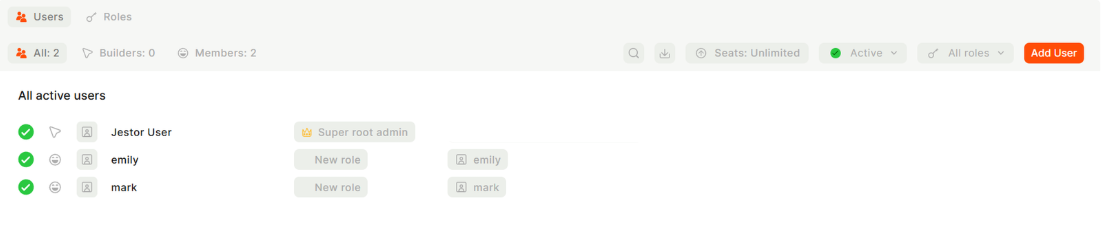
Open the search bar and type users, then press Enter to go to User Management. You can also access it through the sidebar, Settings, or the home page.

Step 2: Click Add User
In the top-right corner of the Users page, click the Add User button.
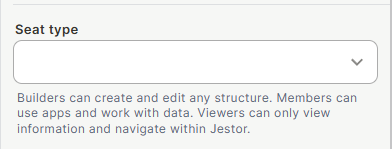
Step 3: Select the seat type
In the Seat type dropdown, choose between:
- Member: for users who will use the workspace (access tables, apps, dashboards)
- Builder: for users who will build in the workspace (create tables, automations, apps)
Step 4: Choose the login type
Select Email or Username.
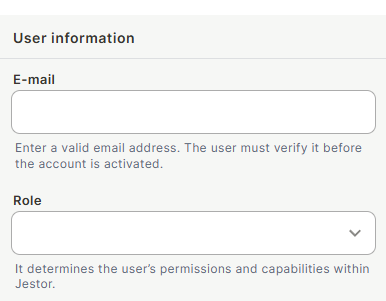
- Email: enter the person's email address. To invite multiple people at once, add several emails separated by commas (e.g.
[email protected], [email protected], [email protected])
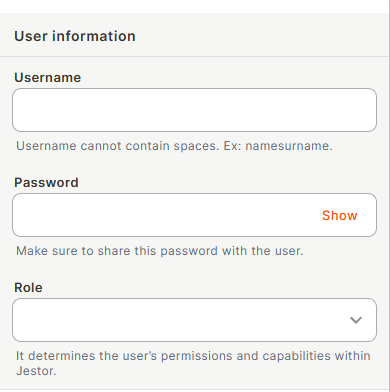
- Username: enter a name, a username, and a password for the person directly
Step 5: Select the role
In the Role dropdown, choose the role profile that defines what this user can see and do in the workspace.
Step 6: Send invite / Add user
For Email users, click Send invite; each email receives an invitation to join the workspace. For Username users, click Add user; the account is created immediately with the password you set, with no invite or activation step.
Adding users in bulk (CSV)
Step 1: Open User Management and click Add User, same as above.
Step 2: Turn on bulk creation
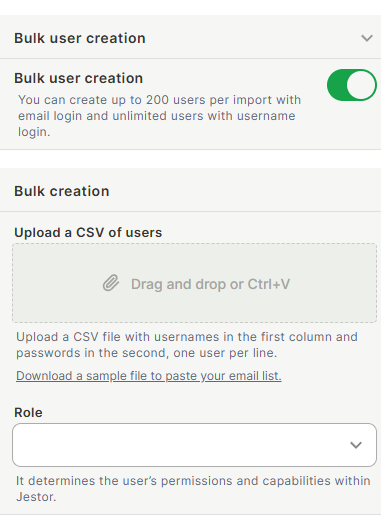
Toggle the CSV/bulk option. A CSV template becomes available to download.
Step 3: Fill in the CSV
Download the template and fill it in with your list of users, or export and edit a table from Jestor. You can also ask an AI tool (like Claude or ChatGPT) to generate the CSV for you in the required format.
Step 4: Upload the CSV
Upload your completed CSV file.
Step 5: Select the role
Choose the role to apply. This role is applied to every user in the uploaded CSV. To assign different roles, do separate uploads.
Step 6: Click Add Users
All users from the CSV are created at once. Email-type users each receive an invite, Username-type users are created immediately.
Keep in mind
- Username-type users cannot use two-factor authentication, since there is no email to confirm it through. Email login remains the more secure option
- Username login is only available for the Member and Viewer roles; it cannot be used for Builder or Super Root, since those roles require email-based verification for certain actions
- Username-type users do not receive any native email notifications, since they have no email on file
- The role selected in a bulk CSV upload applies to every user in that file, you cannot mix roles in a single upload
- If you run out of seats, you will not be able to add new users until a seat is freed or your plan is upgraded
- Adding a user does not automatically give them access to every table or app, access is controlled by their role profile
- Invited Email-type users only appear as active in User Management after they accept the invite and activate their account
FAQ
1- What's the difference between Email and Username login?
Email login sends an invite and supports two-factor authentication. Username login is set up directly by you with a name, username, and password, no email and no second authentication factor.
2- Can I create Username-type logins for Builder or Super Root users?
No. Username login is only available for the Member and Viewer roles, since Builder and Super Root require email-based verification.
3- Can I mix login types or roles in a single CSV upload?
No. Each CSV upload is for one login type (Email or Username), and the role you select applies to every user in that file. Use separate uploads for different roles or login types.
4- Will a Username-type user receive an invite email?
No. Since there's no email on file, the account is created immediately with the password you set; there's no invite or activation step.
5- Can I change a user's seat type, role, or login type after adding them?
You can update seat type and role at any time from User Management. Login type (Email or Username) is set when the user is created.
Updated 2 months ago