
Multiple Forms in Open Card
For instructions on how to access and configure the Open Card, see the Open Card page. For instructions on how to create and edit Superforms, see the Superform page.
Capabilities
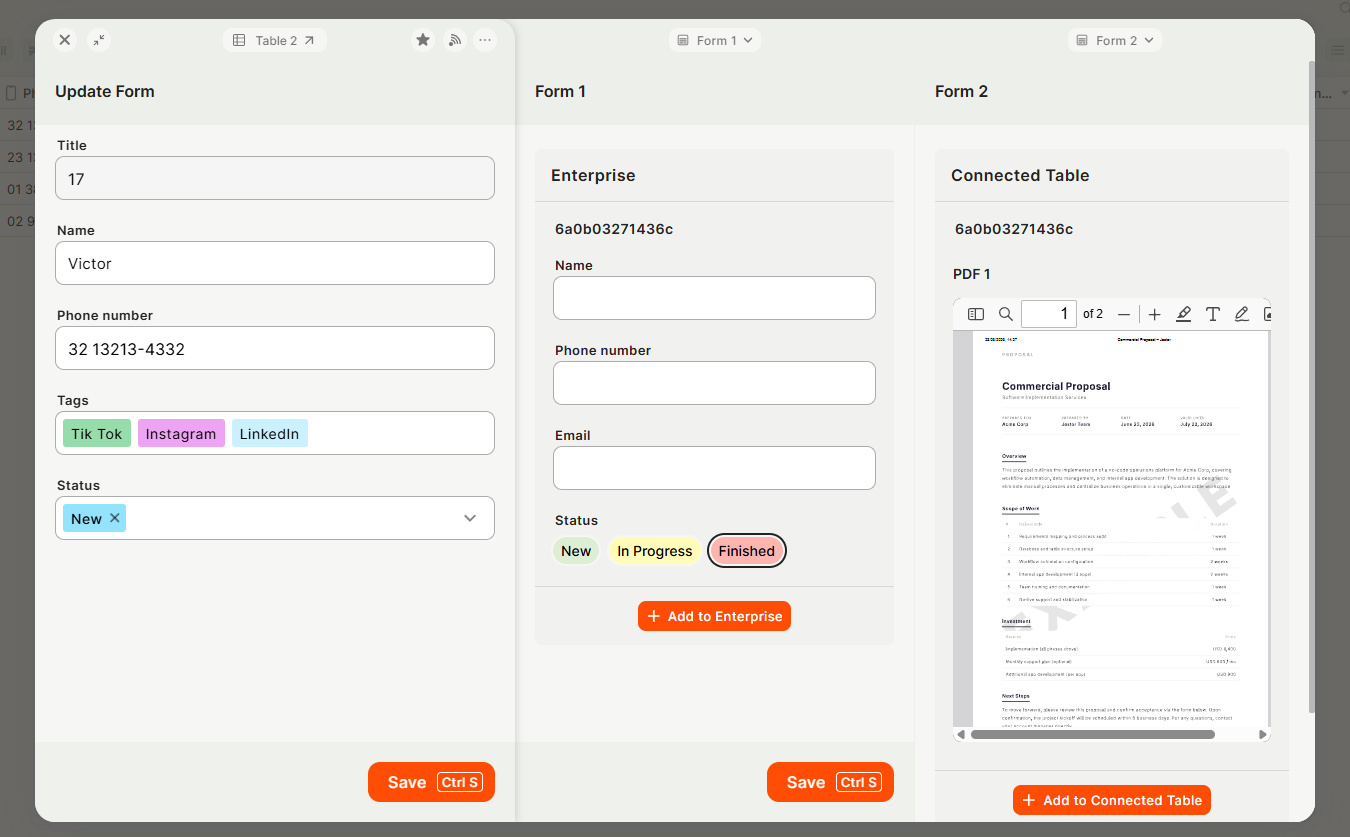
Multiple Forms in Open Card lets you add more than one Superform to a record's open card, each displayed in its own side panel. With this feature you can:
- Display several forms for the same record simultaneously, each in a separate side panel
- Include forms from connected records alongside the main record's forms
- Apply conditional logic independently to each form
- Set individual forms as read-only
- Organize content into focused panels — one for general info, one for costs, one for approval actions, attachments, instructions, or any other grouping
How It Works
The open card supports multiple side panels. Each panel can display a different Superform tied to the same record (or a connected record). The forms are independent — each one can have its own fields, conditionals, permissions, and layout. All Superform capabilities apply: field grouping, conditional visibility, read-only mode, rich content blocks (long text, images, YouTube embeds), and more.
How to Set It Up
-
Open the table and go to Edit Superform for the record's open card.
-
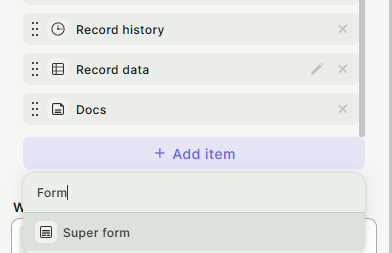
In the form toolbar, look for the Superform option — this is where you manage which forms appear in the open card.
-
Select an existing Superform or create a new one (you can customize color, fields, conditionals, and layout just like any other Superform).
-
Repeat to add additional forms. Each form will appear in its own side panel in the open card.
-
Save. The forms will now be visible in the open card, side by side in their respective panels.
Use Cases and Examples
Approval workflow — The first panel shows general record info, the second shows cost center details, and the third shows only the approval action buttons. Each panel stays focused, and conditional logic hides the buttons once the record is approved.
Expense reimbursement — One panel holds the form fields. A second panel displays the reimbursement policy as a long text block, conditionally shown only when the reimbursement amount exceeds a threshold.
Attachments panel — Dedicate one side panel entirely to file attachments or images, keeping the main form clean.
Stage-specific instructions — A panel with a text or image block appears only when the record is in a specific phase, guiding the user through what to do next.
Connected record data — Show a form from a connected record (e.g., a supplier or project) alongside the current record's form, so users have all context in one view.
Keep in Mind
- Multiple forms in the open card do not merge into a single form — each panel is independent and does not inherit settings from the others.
- Conditional rules apply per form; a condition set in one form does not affect visibility in another.
- Read-only mode is set per form, not globally across all forms in the open card.
- Adding a form here does not replace the existing open card form — it adds to it.
- Forms from connected records show the connected record's data, not a copy of it.
FAQ
1- Can I reorder the forms in the open card?
Forms appear in the order they were added. To change the order, remove and re-add them in the desired sequence.
2- Can each form have different conditional rules?
Yes. Each form is fully independent and supports its own conditional logic.
3- Can I make one form editable and another read-only?
Yes. Read-only mode is configured per form inside the Superform editor.
4- Can I add a form from a connected record?
Yes. You can include forms tied to connected records, allowing users to view or edit related data without leaving the open card.
Updated about 1 month ago