
Documents
Documents is a native editor inside Jestor that lets users create, format, and share rich-text documents — all within the platform. Documents can be sent directly to other Jestor users or embedded into apps using the Documents block.
Capabilities
- Create and edit rich-text documents with formatting options (headers, bold, italic, numbered lists, bullet lists, checkboxes, tables, images, file attachments, code blocks, quotes, and dividers)
- Attach multiple documents to individual records in any table
- View and navigate between multiple documents inside a record's side panel
- Share documents with specific workspace users or make them viewable by everyone in the workspace
- Lock documents to prevent accidental edits
- Toggle dark mode for more comfortable writing
- Copy the full text of a document to use outside Jestor
- Open a document in full-page view for focused editing
- Embed documents inside apps using the Documents block
Creating a Document
From the left topbar:
Step 1 - Go to Documents in the left sidebar.
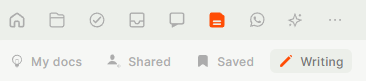
Step 2 - Click New doc.
Step 3 - Give the document a title and start writing.
Step 4 - Use the formatting toolbar to apply styles, insert tables, attach files, or add images.
Step 5 - Changes are saved automatically.
From a record:
Step 1 - Open a record in any table.
Step 2 - Go to the Docs tab in the record's side panel.
Step 3 - Click Add new document.
Step 4 - Give the document a title and start writing.
Step 5 - Changes are saved automatically.
Managing Multiple Documents in a Record
A single record can hold more than one document. You can view them stacked or switch between them one at a time using the document selector at the top of the Docs panel. This is useful for organizing different versions of the same content, separating notes from different meetings, or keeping internal notes separate from client-facing text.
Document Options
While inside a document, you can access additional options from the toolbar:
- Dark mode — switch to a dark background for more comfortable writing.
- Lock — prevent accidental edits. Unlock it whenever you need to resume editing.
- Copy text — copies the full document content so you can paste it into an email or another tool.
- Full-page view — opens the document in a dedicated page for focused editing.
- Hide/Show navigation — toggle the document list panel for a cleaner view.
Sharing a Document
From a standalone document:
Step 1 - Open the document you want to share.
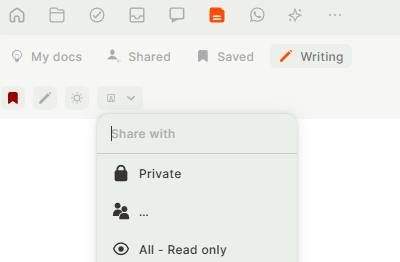
Step 2 - Click the share icon at the top of the document.
Step 3 - Choose the sharing option that fits your needs:
- Private — only you can see the document.
- All - Read only — every user in the workspace can view but not edit.
- Specific users — search and select individual users by email to grant access.
Shared documents appear in the Shared tab of the recipient's Documents section.
From a record:
Step 1 - Open the record.
Step 2 - In the Docs tab, click the share icon.
Step 3 - Search and select the users who should have access.
When sharing from within a record, the selected users gain access to all documents attached to that record.
Adding a Document to an App (Documents Block)
For instructions on how to add blocks to an app, see the Blocks page.
Once the Documents block is added to an app, you can select which document should be displayed or allow users to create new ones directly from the app.
Use Cases and Examples
- Documents can only be shared with users who are already part of your Jestor workspace — external sharing via public link is not supported.
- When sharing a document from within a record, access is granted to all documents in that record, not just the one currently open.
- A document embedded in an app via the Documents block is read-only within the app page — it cannot be edited there.
- Formatting options are limited to what is available in the toolbar; custom HTML or CSS is not supported.
- Version history is not currently available. Once content is edited or deleted, the previous version cannot be recovered.
Keep in Mind
- Documents can only be shared with users who are already part of your Jestor workspace — external sharing via public link is not supported.
- Formatting options are fixed to what is available in the toolbar; custom HTML or CSS is not supported.
- A document embedded in an app via the Documents block cannot be edited in the app page, it´s read only.
FAQ
1- Can a single record have more than one document attached to it?
Yes. You can add multiple documents to the same record and navigate between them in the Docs panel, either stacked or one at a time.
2- If I share a document inside a record, do the other users see all documents in that record?
Yes. Sharing from within a record grants access to all documents attached to that record, not just the one currently open.
3- Can I share a document with multiple specific users at once?
Yes. When sharing, you can search and select multiple individual users from the sharing panel.
4- Can external users (outside my workspace) view a document?
No. Documents can only be accessed by users inside the same Jestor workspace.
5- Is there a version history for documents?
Version history is not currently available. Once content is edited or deleted, the previous version cannot be recovered.
6- Can I edit a document embedded in an app via the Documents block?
No. Documents displayed through the Documents block are read-only within the app page.
Updated 6 months ago