
Attached Records
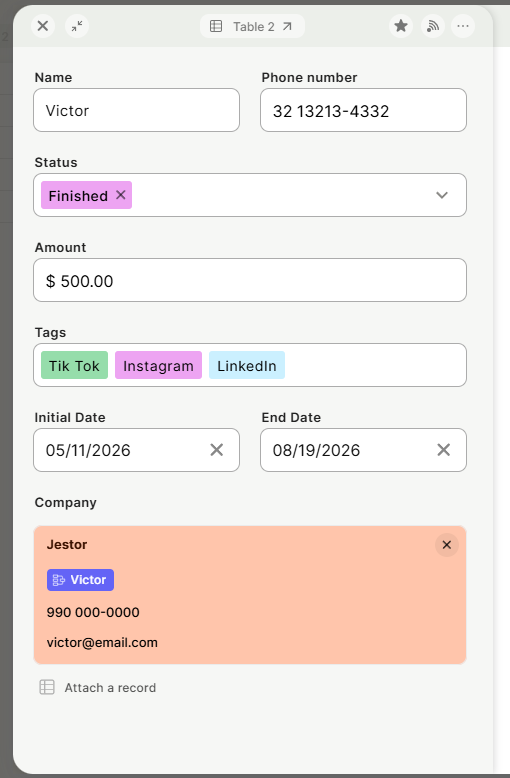
The Attached Records field lets you attach a shortcut to one or more records from another table, or from the same table, directly on a card.
Capabilities
- Attach a shortcut to one or more records from a card
- Attach records from more than one table on the same field
- Attach records from the same table the field belongs to
- Open the attached record directly from the card
- Customize how records from each attached table are displayed
How to Add
Step 1
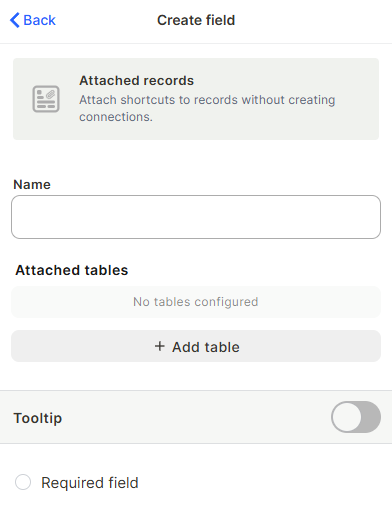
Name the field: Enter a name in the Name field to identify it in your table.
Step 2
Select the attached tables: Click + Add table and choose which table you want to be able to attach records from. Click + Add table again to add more than one table.
Step 3 (optional)
Style the attached tables: Customize how records from each attached table are displayed on the card, so records coming from different tables are easy to tell apart.
Step 4 (optional)
Add a tooltip: Enable the Tooltip toggle and enter a short description to help users understand what this field is for.
Step 5 (optional)
Require the field: Check Required field to make attaching at least one record mandatory before saving.
Step 6
Create: Click Create to add the field to your table.
Use Cases and Examples
Duplicate or related requests: In a Requests table, attach one request to another that describes the same issue, for example when the same case comes in again by email.
Purchases referencing an opportunity: On a Purchases table, attach the related Opportunity record for context, without connecting the two tables.
Meeting notes referencing a deal: On a call or meeting log, attach the Opportunity it relates to, so anyone opening the record knows which deal it belongs to.
Referencing records within the same table: Attach another record from the same table when two cards describe the same situation, such as two entries for the same client visit.
Keep in Mind
- Attached Records creates a shortcut to another card, not a real table connection. It does not sync, roll up, or pull any data from the attached record.
- The field's value cannot be used in automations. If you need the connection to trigger or feed an automation, connect the tables directly instead.
- Attaching a record does not create or change any existing connection between the two tables.
- You can only attach records from the tables added under Attached tables. To attach from a different table, add it there first.
FAQ
1- What is the difference between Attached Records and a Connected Records field?
Attached Records creates a shortcut to another card as a reference, and it doesn't build a real relationship between the tables. A Connected Records field creates an actual connection, and its value can be used in automations, lookups, and roll-ups.
2- Can I use an Attached Records field in an automation?
No. Since it's a shortcut and not a real connection, its value isn't available as a trigger or action in automations. Use a Connected Records field if you need that.
3- Can I attach records from more than one table with the same field?
Yes. Click + Add table under Attached tables and add as many source tables as needed.
4- Can I attach more than one record to the same field?
Yes. You can attach as many records as needed to the same card.
5- Can I attach a record from the same table the field is on?
Yes. The Attached tables list can include the table the field belongs to, letting you reference another record from that same table.
Updated 2 months ago