
Role Composer Agent
Role Composer is a Jestor agent that creates and edits roles and permissions from a prompt. It requires Advanced permissioning.
In short
- What it is: an AI agent, called Role Composer, that creates and edits roles and permissions from a prompt.
- What you can do: describe who the users are and what they should access, and the agent creates the role. You can keep refining it in the same chat.
- How to start: click the + button in the composer and choose Role Composer under Agents, or click Edit with AI on the Roles tab of Users.
- Keep in mind: Role Composer creates the role directly, with no confirmation step. It requires Advanced permissioning and is not available without it.
What is it
Role Composer is the Jestor agent for roles and permissions: what each kind of user can see and do. Instead of configuring a role by hand, you describe it, and the agent creates it. Its greeting says it can create, edit, duplicate and delete the roles of your account.
Role Composer is an independent agent. It appears in the Agents list next to the other Jestor agents, such as Native Automation and the Block Composer. It works with the same concepts as Profiles and Access Levels.
Role Composer needs Advanced permissioningRole Composer requires Advanced permissioning. It is not available without it.
What you can do
- Create a role from a description of who the users are and what they should access.
- Get a summary in the chat of the access the role has, for example which records can be viewed or edited and what cannot be created or deleted.
- Edit an existing role through follow-up messages.
How to access
There are two ways to open Role Composer.
From the composer. On the home screen, click the + button at the bottom left of the AI Builder composer. Under Agents, choose Role Composer.
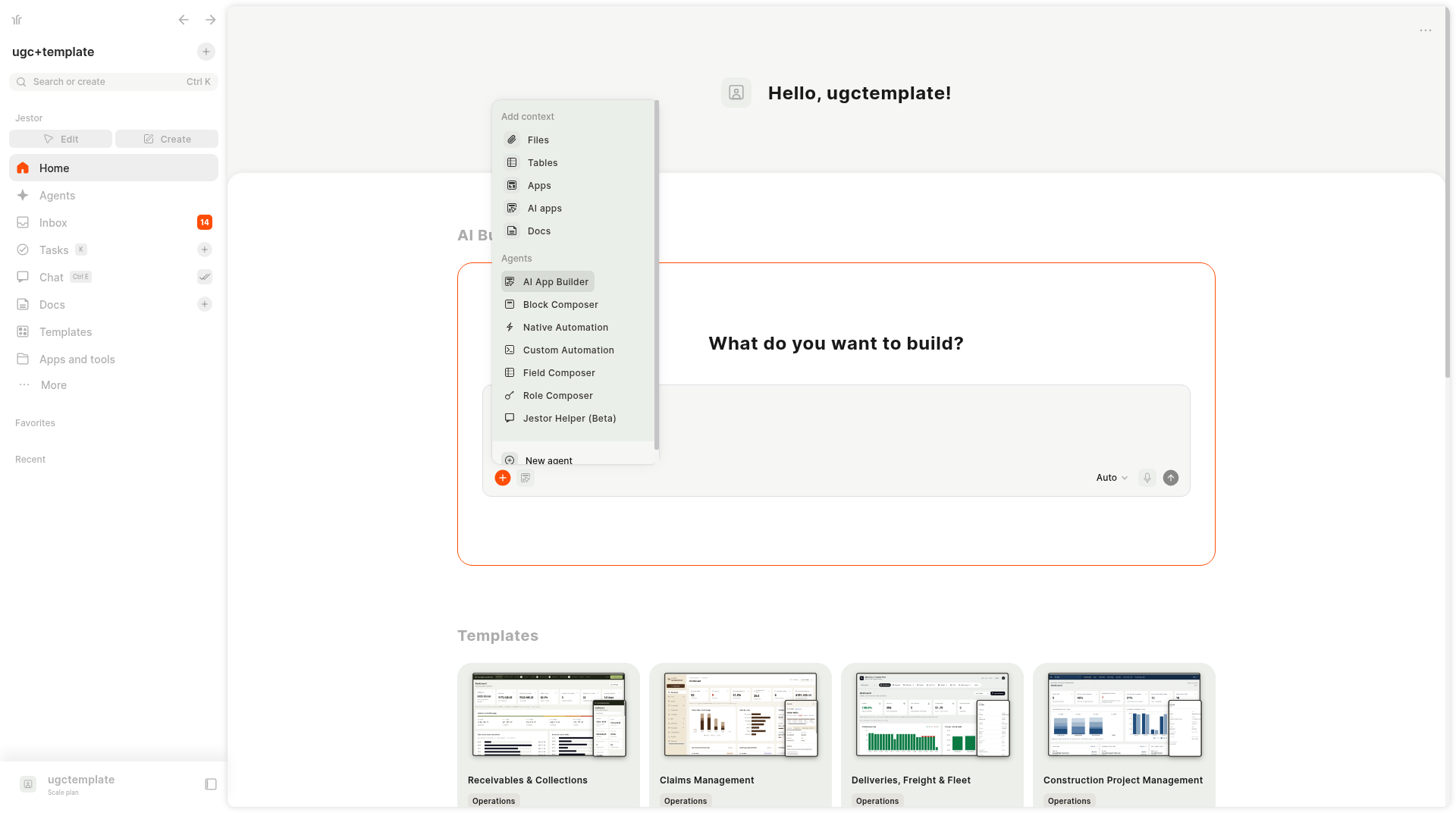
The Agents section lists AI App Builder, Block Composer, Native Automation, Custom Automation, Field Composer, Role Composer and Jestor Helper (Beta), plus New agent. Once you pick an agent, its icon appears next to the + button.
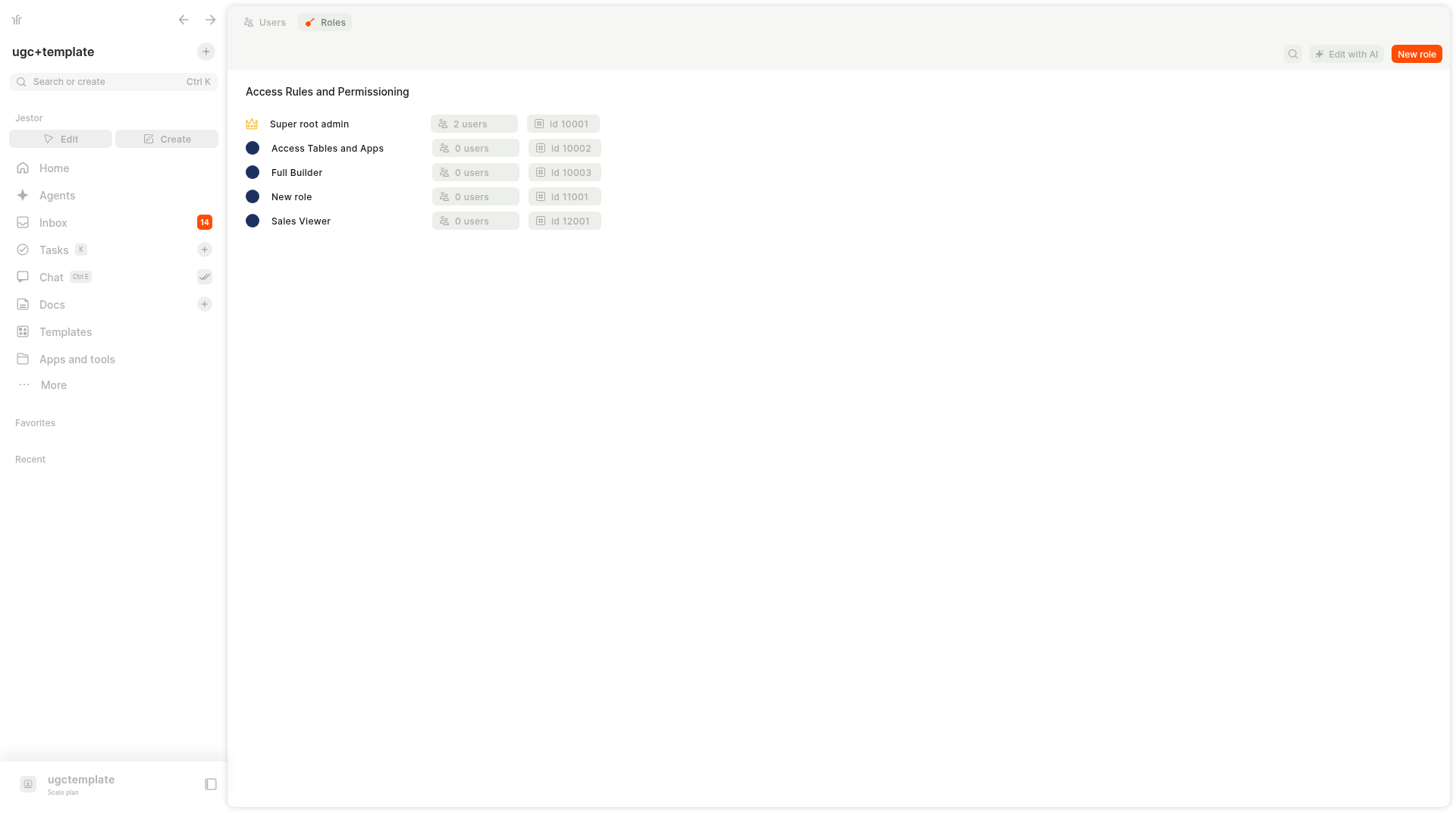
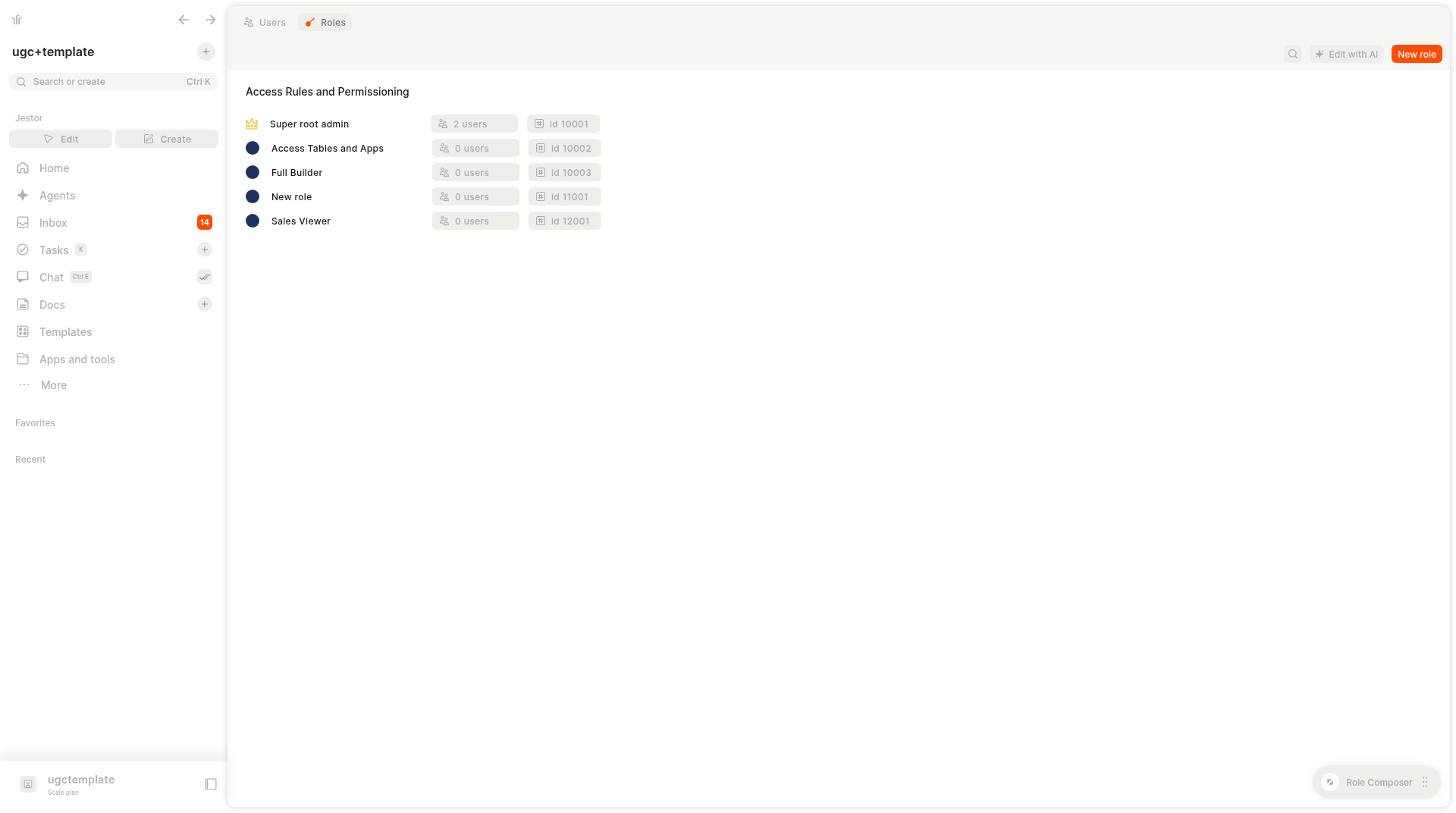
From Users > Roles. In the left sidebar, click More, then Settings, then Users, and open the Roles tab. Click Edit with AI, at the top right next to New role. Role Composer opens as a floating window over the page.
Example prompts
- "Create a role that can only view records and comments, with no create, edit or delete."
- "Create a read-only role for clients. It should not see other tables or apps."
- "Change the Support role so it can no longer delete records."
How roles are created
Role Composer does not ask for confirmation. It creates the role as soon as it finishes. It summarizes the access it gave the role, says that no users have been assigned, and shows a notice such as "A new role named ... has been created." The role name is a link that opens the role's rules page.
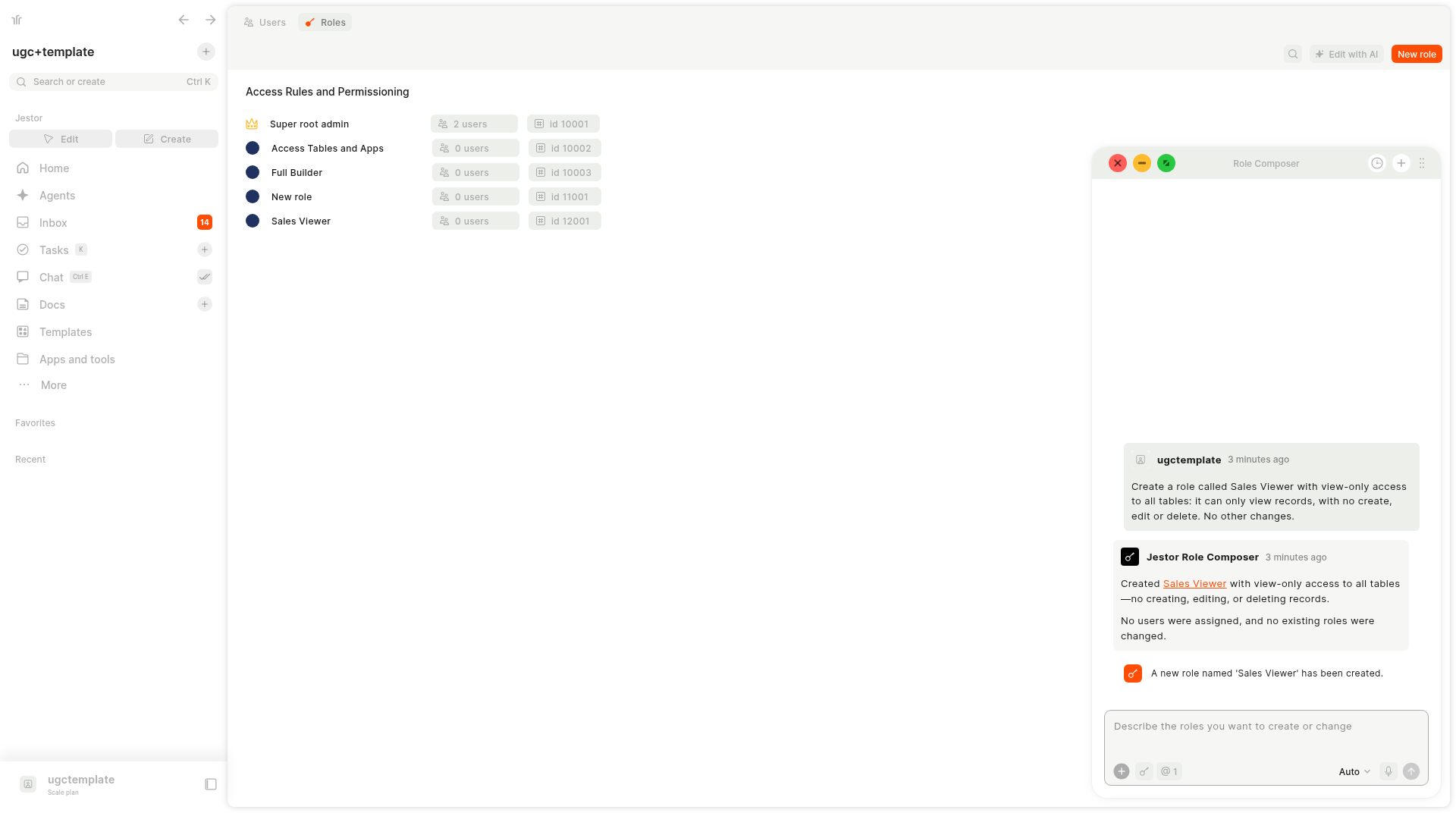
A new role has no users until you assign them. Review the summary, open the role's rules page to check it, and ask Role Composer for changes if needed. You can also edit the role by hand.
The agent window
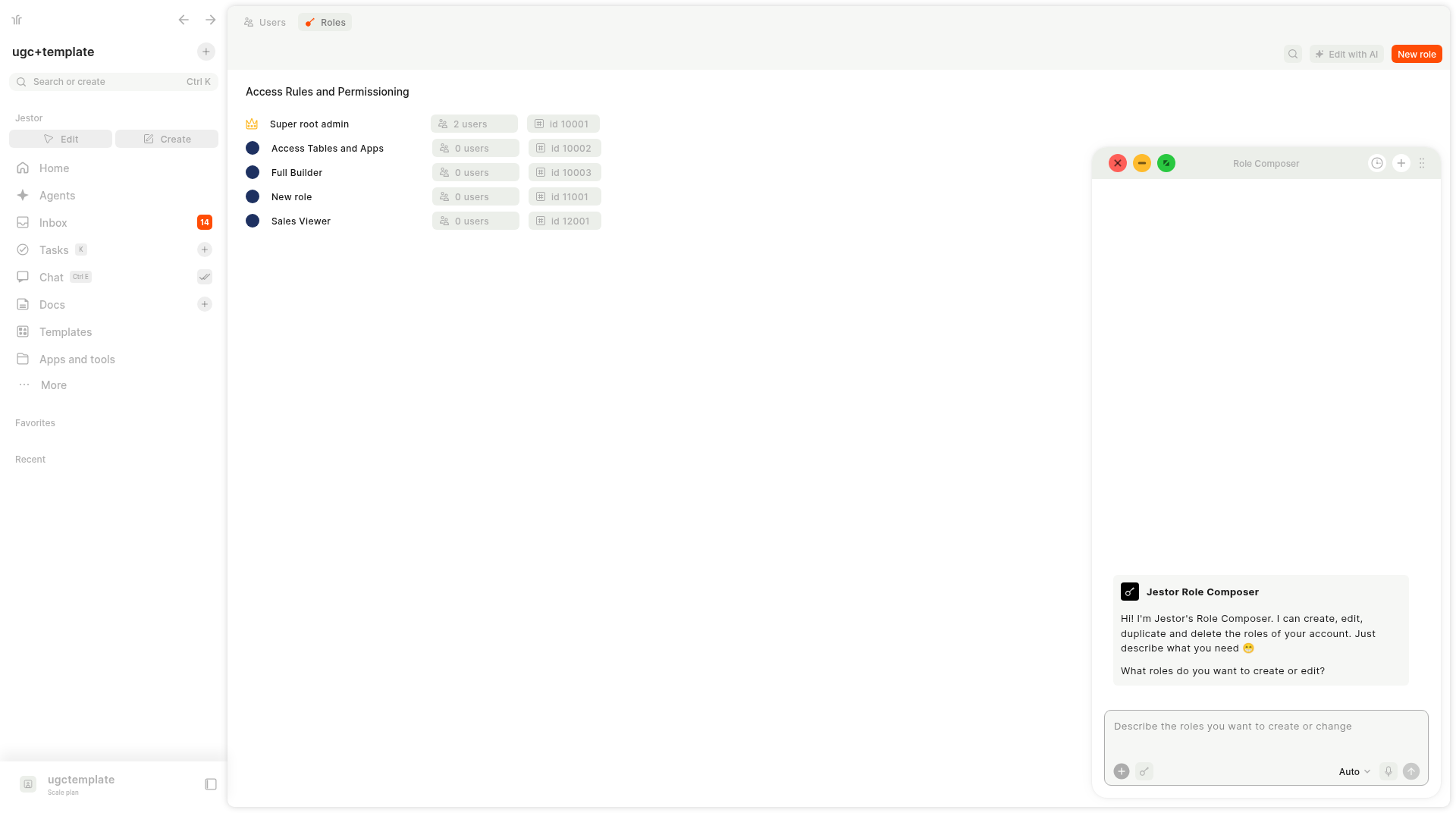
The agent opens in a window that floats over the page you are on, so you keep your place. In the header you find the close (red), minimize (yellow) and maximize (green) buttons, plus history, + for a new chat and a menu with more options. When you open it, the agent greets you and asks what roles you want to create or edit.
If you minimize the window, a Role Composer pill stays at the bottom right of the screen. Click the pill to reopen the window.
Keep in mind
- Review before relying on it. Check the role the agent created, and test it with a real user before you depend on it.
- Roles control access. A role that is too open can expose data. Ask for only the access the users need.
- No confirmation. Because the role is created directly, check the summary in the chat right away.
- AI credits. Agent messages consume AI credits. See AI Credits.
Related pages
- Profiles and Access Levels - Advanced Permissioning
- Native AI Agents
- Field Composer Agent
- Block Composer
FAQ
1. Does Role Composer ask for confirmation?
No. It creates the role directly and tells you what access it gave. Check the role and ask for changes if needed.
2. Why can't I use Role Composer?
Role Composer requires Advanced permissioning. It is not available without it.
3. Where do I find Role Composer?
Click + in the AI Builder composer on the home screen and choose it under Agents, or click Edit with AI on the Roles tab of Users (More > Settings > Users).
4. Are users added to a role the agent creates?
No. The agent tells you that no users have been assigned. Assign users to the role afterwards.
5. Can I minimize the Role Composer window?
Yes. Use the yellow minimize button. A Role Composer pill stays at the bottom right. Click it to reopen the window.
6. Can I still edit roles by hand?
Yes. Roles the agent creates can be edited by hand afterwards.
7. Does using Role Composer consume AI credits?
Yes, like other AI agents. See AI Credits.
Updated about 14 hours ago