
Review a text and improve grammar (Jestor AI)
An AI-powered automation action that analyzes a text stored in a Jestor field, corrects grammar errors, and rewrites the content with improved structure and clarity. The result is saved back into a field of your choice.
When to Use
- You want to automatically review and clean up text written by users before storing or displaying it
- You are building flows that involve customer-facing content, such as descriptions, notes, or messages, and need to ensure consistent grammar quality
- You want to reduce manual proofreading steps in content-heavy processes
How to Configure
Step 1
Create a new automation: This page covers only the action. For instructions on how to access automations and create a new one, see the Automations page.
Step 2
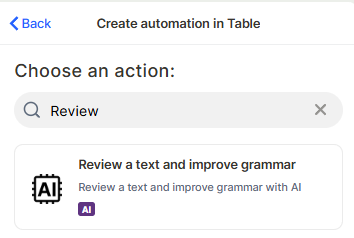
Choose the action: In the action search bar, type review a text and select Review a text and improve grammar.
Step 3
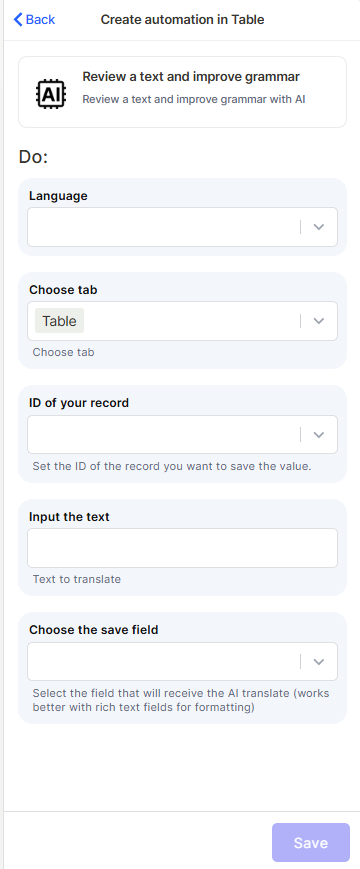
Language: Select the language of the text to be reviewed. This helps the AI apply the correct grammar rules.
Step 4 (optional)
Choose tab: Select the table that contains the records you want to process.
Step 5
ID of your record: Map the field that holds the ID of the record you want to update with the reviewed text.
Step 6
Input the text: Map the field that contains the original text to be reviewed and improved.
Step 7
Choose the save field: Select the field where the improved text will be stored. Rich text fields work best for preserving formatting.
Step 8
Save: Click Save to apply the automation.
Keep in Mind
- This action does not translate the text — it only reviews and improves grammar within the same language. If you need translation, use the Translate action instead.
- The action does not detect the language automatically — selecting the wrong language may produce incorrect or mixed results.
- The output is saved into a single field. The action does not split the improved text across multiple fields.
- This action does not preserve the original text in a separate field — if you need a backup, map the original text to a second field before running the automation.
- The quality of the improvement depends on the clarity of the input. Very short, incomplete, or highly technical texts may produce limited results.
- This action does not flag specific errors — it rewrites the full text. You will not receive a list of corrections made.
- Rich text fields are recommended for the save field. Using a plain text field may cause loss of formatting applied by the AI.
FAQ
1 — Does this action translate the text to another language?
No. This action only reviews and improves grammar in the original language. It does not translate. For translation, use the dedicated Translate action.
2 — Can I use this action on a field that already has correct grammar?
Yes. If the text is already well-written, the AI will either return it unchanged or make minor stylistic adjustments. It will not introduce errors.
3 — Will the original text be overwritten?
Only if you map the save field to the same field as the input. If you want to keep the original, save the output to a different field.
4 — Does it work with rich text fields?
Yes, and rich text fields are recommended. The AI can return formatted output, and rich text fields are better suited to preserve that formatting.
5 — Can I use this action on very long texts?
The action works best with standard-length texts. Extremely long content may be truncated or produce incomplete results depending on the AI's processing limits.
Updated 7 months ago