
Record Data
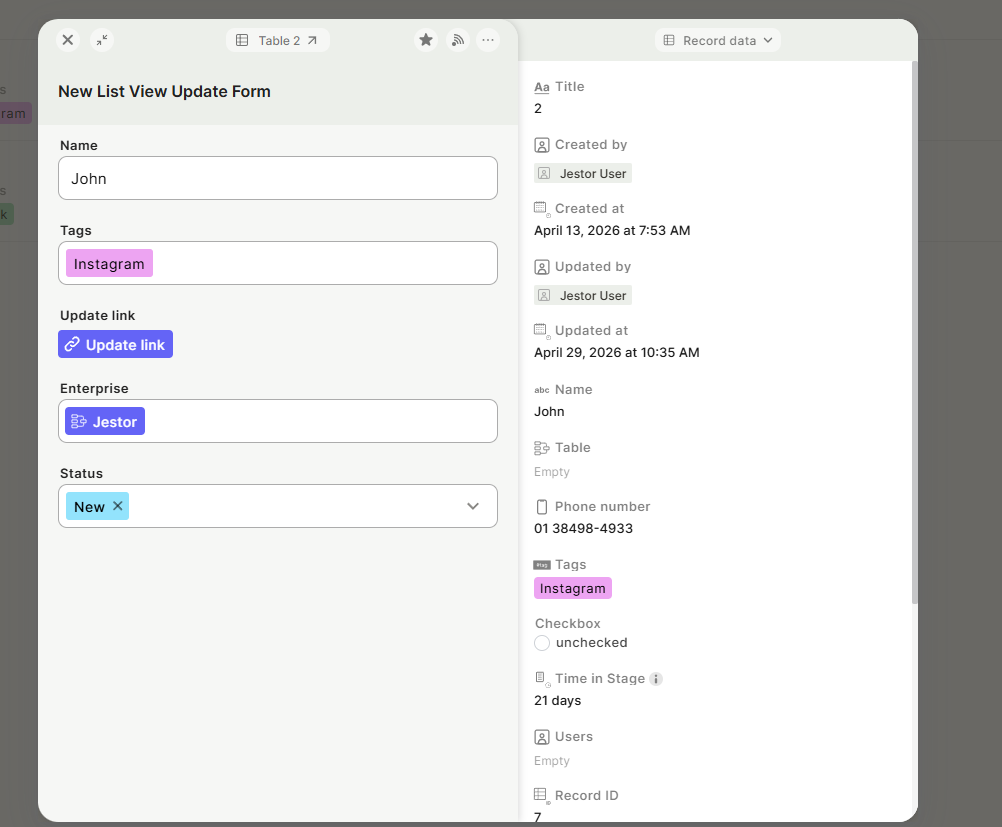
The Record Data panel is the side panel shown when viewing a record. It displays field data from that record, and you can now customize which fields appear and in what order — so each form or view shows only the information that matters for that context.
Capabilities
- Display selected record fields in the side panel
- Reorder fields by dragging them up or down
- Remove fields you don't want to show
- Save a custom configuration per form or view
How to Customize
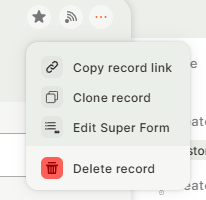
Step 1: Open the record view and click Edit Super Form.
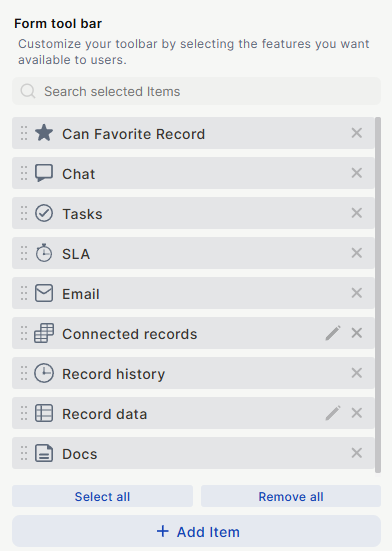
Step 2: Scroll down until you find the Form Toolbar section, then click the pencil icon on the Record Data section.
Step 3: Reorder fields by dragging them, or remove fields by clicking the delete icon next to each one.
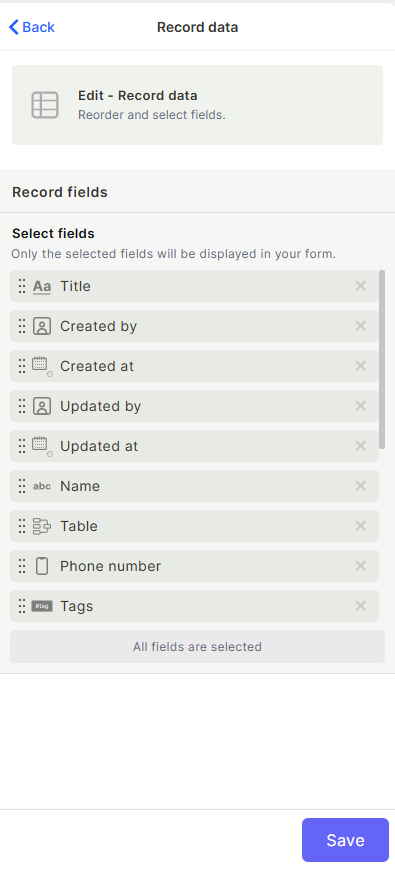
Step 4: Click Save.
Keep in Mind
- Customization applies to the specific form or view — not globally across all views of that record.
- Removing a field from Record Data does not delete the field or its data. It only hides it from this panel.
- Fields hidden from Record Data are still accessible and editable through other views or the full record.
- There is no per-user configuration — changes apply to everyone who accesses that form or view.
FAQ
1- Can I restore a field I removed from Record Data?
Yes. Click the pencil icon to re-enter edit mode and re-add the field from the list.
2- Does customizing Record Data affect all users?
Yes. The configuration is per form or view, so all users accessing that same view will see the same fields in the same order.
3- Can I have different Record Data configurations for different views of the same table?
Yes. Each form or view has its own independent Record Data configuration.
4- Does removing a field from Record Data delete its data?
No. The data remains intact. Only the visibility in this specific panel is affected.
Updated 20 days ago