
Fields and Form Blocks
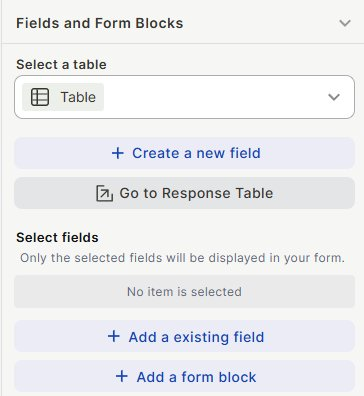
Fields and Form Blocks is the section inside Super Form where you define what appears in the form. You connect the form to a table, choose which fields from that table will be collected, and optionally add form blocks — content elements that help structure and guide the user experience without capturing data.
Capabilities
- Connect the form to any table in your workspace
- Add existing fields from the connected table to the form
- Create new fields directly from the form editor
- Add form blocks between fields: Connected Table, Section, Spacer, New Page, Inline, Long Text, Image and GIFs, and YouTube Video
How to configure
Select a table
Open the Select a table dropdown and choose the table where form submissions will be stored. The table must be selected before you can add fields or form blocks.
Add existing fields
Under Select fields, click + Add an existing field to choose which fields from the connected table will appear in the form. Only the fields you add here will be shown to users. Fields can be reordered by dragging them after they are added.
Create a new field
Click + Create a new field to add a new column to the table and include it in the form at the same time, without leaving the form editor.
Add a form block (optional)
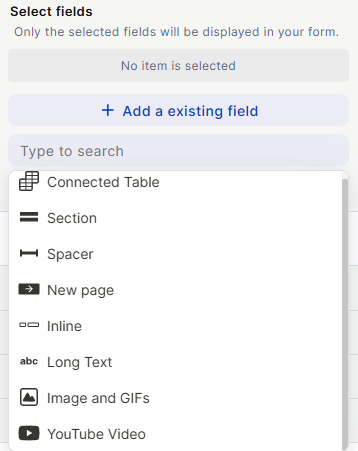
Click + Add a form block to insert a content element between fields. The available form block types are:
- Connected Table — Displays a related table inline within the form. To learn how to use this field, acess Connected Table.
- Section — Adds a section header to visually group fields
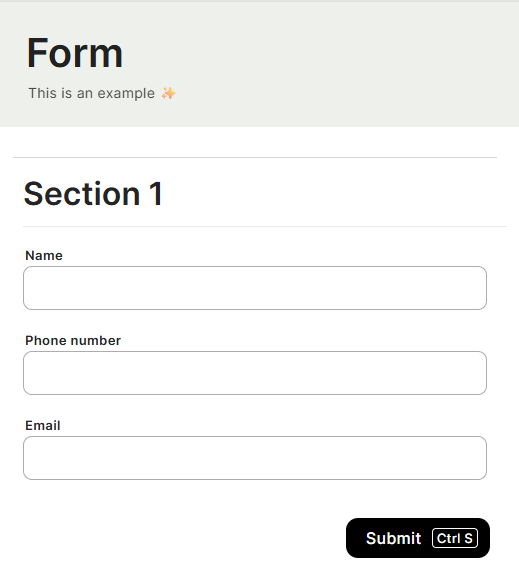
- Spacer — Inserts space between elements
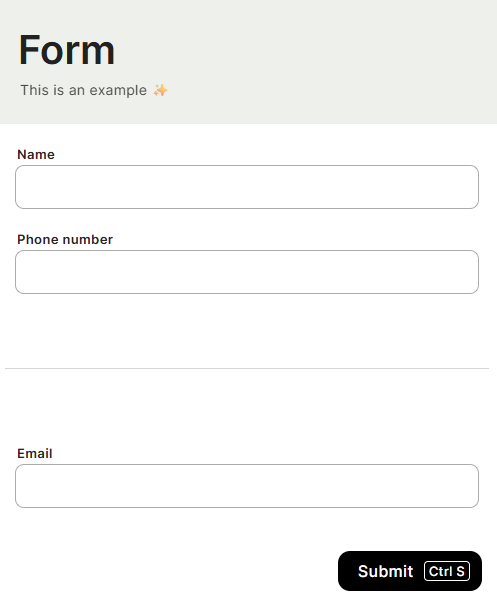
- New Page — Breaks the form into a new step, creating a multi-page sequence
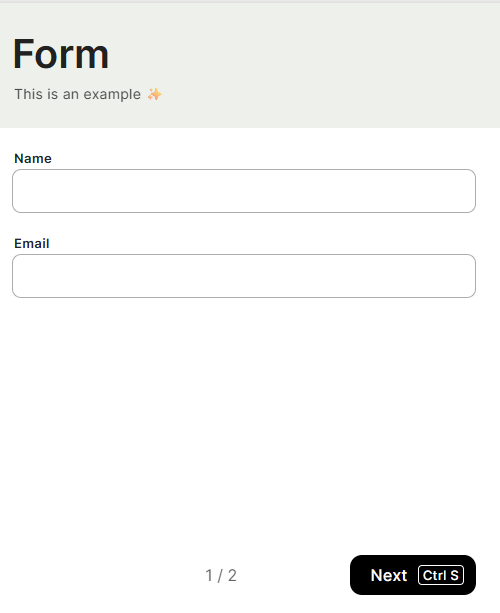
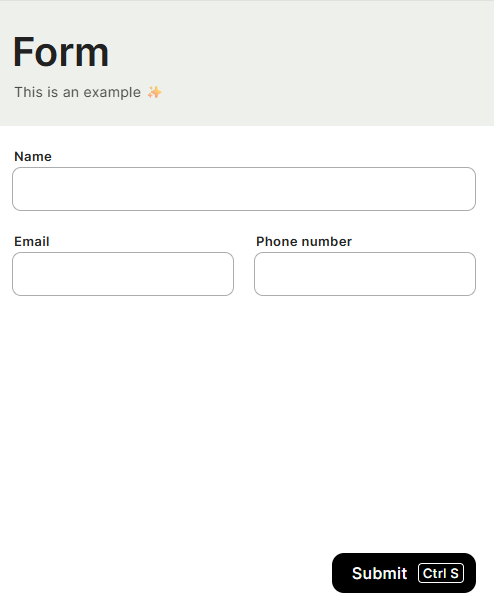
- Inline — Displays content inline within the form layout
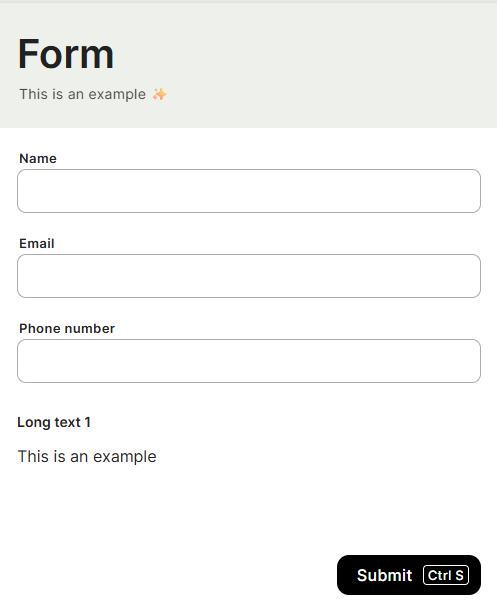
- Long Text — Adds a block of static text for instructions or explanations
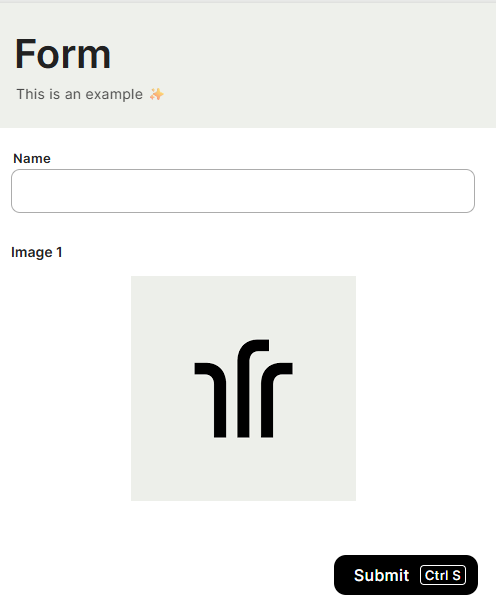
- Image and GIFs — Inserts an image or GIF as a visual element in the form
- YouTube Video — Embeds a YouTube video directly in the form

Go to Response Table
Click Go to Response Table to open the connected table directly. Use this to review submitted records or adjust the table structure.
Keep in Mind
- Form blocks do not capture or store user input — they are purely visual and structural.
- Removing a field from Select fields does not delete it from the table.
- A table must be selected before fields or form blocks can be added.
- The New Page block is what creates the multi-page (step-by-step) experience in the form — without it, the form is a single page regardless of how many fields it has.
FAQ
1 — Can I add fields from a different table than the one selected?
No. Only fields from the connected table can be added. To collect data from another table, use a separate Super Form connected to that table, or add a Connected Table form block.
2 — Can I have the same field appear more than once in the form?
No. Each field can only be added once.
3 — If I create a new field from the form editor, does it appear immediately in the table?
Yes. The field is created in the connected table right away and added to the form simultaneously.
Updated 15 days ago