
AI Builder
The AI Builder lets you describe what you want to build in plain language, and Jestor creates the structure for you — tables, apps, kanbans, forms, and more.
What is it
The AI Builder is Jestor's built-in AI assistant for creating tools. Instead of configuring tables and apps manually from scratch, you describe your process or goal in a text field, and the AI generates the structure for you. It can create tables with fields, kanban views, forms, and full apps based on your description.
The AI Builder is also referred to as the Jestor Agent inside the platform.
Capabilities
- Create tables with fields (text, number, date, select, connected records, and others)
- Create kanban views grouped by any select field
- Create forms for data entry, including file upload fields
- Create app pages combining views, forms, and layouts
- Build full apps with multiple pages and connected tables
- Modify existing structures — add fields, create new views, or restructure an app page through follow-up messages in the same chat
When to use
Use the AI Builder when you want to:
Start a new process from scratch and aren't sure how to structure it
Quickly prototype a table or app before refining the details manually
Create a kanban, form, or app page without going through each configuration step
Reduce setup time on repetitive structures like CRMs, task boards, or approval flows.
How to access
From anywhere in the platform (Build mode):
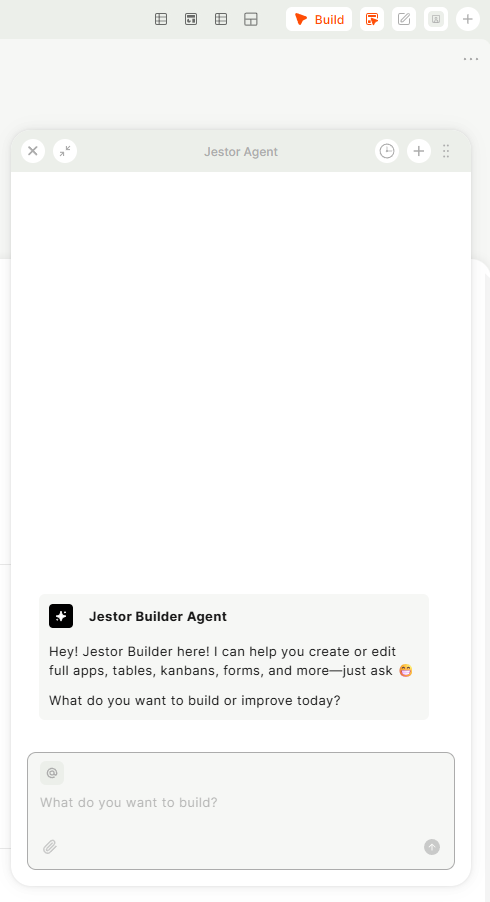
Make sure you are in Build mode — look for the Build button in the top bar and confirm it is active (highlighted in orange).

Once in Build mode, the icon will appear next to Build button in the top right corner.
Click it to open the AI Builder chat panel on the right side of the screen.
Type your request in the input field at the bottom of the panel and press Enter.
The agent will process your request (you'll see a "Thinking…" indicator) and build the requested structure.
How to use
After opening the AI Builder, describe what you want to build in natural language. Be as specific as possible about your process, the fields you need, and how data should be organized.
Examples of what you can ask:
- "Create an opportunities table with 3 stages and a kanban view"
- "Build a simple CRM with companies, contacts, and a pipeline"
- "Create an onboarding form for new clients with name, email, and document upload"
- "Build a task management app with a kanban grouped by status and a form to add tasks"
After sending your message, the Jestor Agent will generate the structure. You can continue the conversation in the same chat panel to request adjustments.
Keep in Mind
- Automations are not supported. The AI Builder cannot create or configure automations. After generating your structure, set up any automations manually in the table settings.
- Review the generated structure before using it in production. The AI Builder creates a starting point — field types, names, and relationships may need manual adjustments.
- The Builder icon only appears when Build mode is active. If you don't see it, check that the Build toggle in the top bar is turned on.
- The AI Builder chat (Jestor Agent panel) is not the same as a general support chat. It is specifically for building and modifying tools within your workspace.
FAQ
1 — What is the difference between the AI Builder on the home page and the Jestor Agent panel?
They are the same AI. The home page shows a simplified entry point; the Jestor Agent panel (accessed via the pencil icon in Build mode) opens a full chat interface where you can continue a conversation, request changes, and build iteratively.
2 — Can the AI Builder modify an existing table or app?
Yes. You can open the Jestor Agent panel while viewing an existing structure and ask it to make changes, such as adding a field, creating a new view, or restructuring an app page.
3 — Can the AI Builder create automations?
No. Automations must be configured manually. Build your table and app structure with the AI Builder first, then go to the automation settings to add triggers and actions.
4 — Builder icon isn't showing up. What do I do?
Make sure you are in Build mode. Click the the Build button in the top bar to activate it. Once Build mode is on, the icon will appear next to Builder mode button.
5 — How specific should my description be?
The more detail you provide, the closer the result will be to what you need. Mention the number of stages, the types of fields, and the views you want (kanban, form, app). You can always refine the structure with follow-up messages in the same chat.
Updated 7 months ago