
Email Ticket
Jestor provides each table with a native @jestor.email address that automatically creates records and enables email conversations directly within records — no automations needed.
Capabilities
- Automatically create a new record for every inbound email
- Reply to emails directly inside a record, keeping the full conversation in one place
- Map email fields (subject, body, attachments, sender) to table fields
- Forward emails from a custom alias to avoid duplicates
- Set an auto-reply sent when a new record is created
- Choose between Ticket and Plain conversation styles
- Configure a custom sender name for outgoing replies
- Add a table-level email signature
- Define closed stages with Stages so that re-opened conversations generate a new ticket instead of appending to a closed one
- Use a Random ID field as the ticket identifier in outgoing email subjects, replacing predictable sequential IDs with a standardized, hard-to-guess code (see Random ID)
Table email address vs. card email address
Table email address — receives new emails and creates a new record for each one.
Example: [email protected]
Card email address — unique to each record. Replies sent here are threaded into that specific card's conversation.
Example: [email protected]
How to activate Table Email
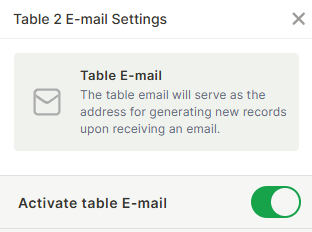
Step 1 — Open the table settings and navigate to Table E-mail. Toggle Activate table E-mail on.
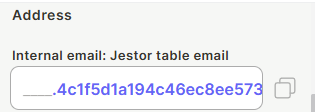
Step 2 — Under Address, copy the internal Jestor email address generated for the table. This is an internal address — you don't need to share it with anyone. Instead, set up a forwarding rule in your real email provider (e.g., Gmail, Outlook) so that emails sent to [email protected] are automatically forwarded to this Jestor address..
Step 3 — Under Matching email fields, map each email property to a field in your table:
- Subject field — stores the email subject line
- Body field — stores the full email body
- Attachment field — stores any attached files
- From E-mail — stores the sender's email address
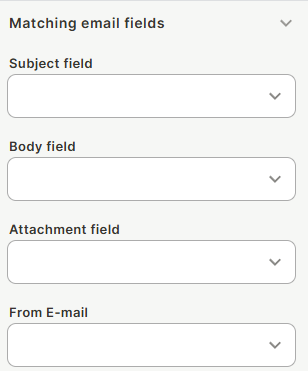
If the required fields don't exist yet, create them in the table first, then return to this screen to map them. Proper mapping lets you build dashboards and automations on top of email data.
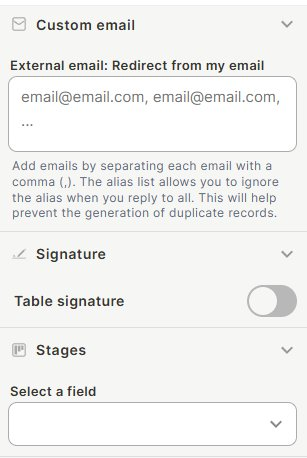
Step 4 (optional) — Under Email Tools → Custom email, add one or more external addresses in the External email: Redirect from my email field (comma-separated). This tells Jestor to treat those addresses as aliases, preventing duplicate records when you reply-all from your regular email client.
Step 5 (optional) — Under Signature, toggle Table signature on and configure a signature that will appear on all outgoing replies from this table.
Step 6 (optional) — Under Stages, select a status or stage field from your table. Mark which stage values count as closed. When a closed ticket receives a new email, Jestor creates a brand-new record instead of appending the message to the closed one. This keeps historical tickets intact and allows accurate SLA tracking.
Step 7 (optional) — Under Conversation style, choose how outgoing emails look:
- Ticket — preserves full conversation history, ideal for support workflows
- Plain — mimics a standard email thread, ideal for sales or outreach
You can also set a Sender name to control how your team's name appears to recipients.
Step 8 (optional) — Under Confirmation response, write a Static response that is sent automatically when a new record is created. Example: "Thanks for reaching out. Our team will reply within 24 business hours."
Step 9 — Click Save.
Use cases and examples
Support ticketing — A [email protected] address forwards to the table email. Every inbound request becomes a card. Agents reply from the card, customers receive replies from [email protected] (via alias), and closed tickets never get mixed with re-opened ones thanks to the Stages setting.
Sales inbox — Use Plain conversation style so outbound replies look like regular emails. The From E-mail field lets you segment leads by their domain or source automatically.
Vendor communication — A procurement table receives supplier quotes by email. Subject and body are stored as fields, enabling automations that route quotes to the right team based on keywords.
Secure ticket codes in email subjects — Add a Random ID field to the table and use its value in the subject line of outgoing emails. Instead of exposing a sequential number like #42 (which could let a recipient guess other ticket IDs), your emails carry a standardized, randomized code like TKT-001-X7A2. To learn how to set it up, see Random ID.
Keep in mind
- The table email address is fixed and generated by Jestor — it cannot be customized. The alias (External email field) is what allows you to present a branded address to senders.
- Stages only controls what happens when a closed record receives a new email. Emails arriving while a record is in any non-closed stage are always threaded into the existing record.
- The Confirmation response is sent once per new record creation, not on every reply.
- Matching email fields store data at record creation time. Changes to the mapping do not retroactively update existing records.
- The card email address (
[email protected]) is what keeps replies threaded. If a recipient modifies or removes the+IDsuffix, Jestor may create a new record instead of threading the reply.
FAQ
1- Do I need to share the @jestor.email address with my customers?
No. The @jestor.email address is internal and you never need to expose it. The recommended setup is: (1) keep using your existing address like [email protected], (2) configure a forwarding rule in your email provider so incoming messages are forwarded to the Jestor address, and (3) register your address as an alias in the External email field. With this setup, senders always interact with your real address — Jestor handles everything in the background.
2- What happens if someone emails the table address and a matching record already exists?
The table email always creates a new record per inbound email. To thread follow-ups into the same record, the sender (or your email client) must use the card email address, which includes the record ID suffix.
3- Can I have multiple closed stages?
Yes. Stages lets you select any field and mark multiple stage values as closed. Any of those values will trigger the new-ticket behavior on inbound replies.
4- Is the Confirmation response sent for every new email, including forwarded ones?
Yes, the static response is triggered whenever a new record is created via the table email, regardless of whether the email was forwarded or sent directly.
5- Can I use automations together with Email Ticket?
Yes. Since email data is mapped to table fields, you can trigger automations based on those fields — for example, assigning a record to a team member based on the subject, or sending a Slack notification when a high-priority ticket arrives.
Updated 6 months ago