
PDF Maker
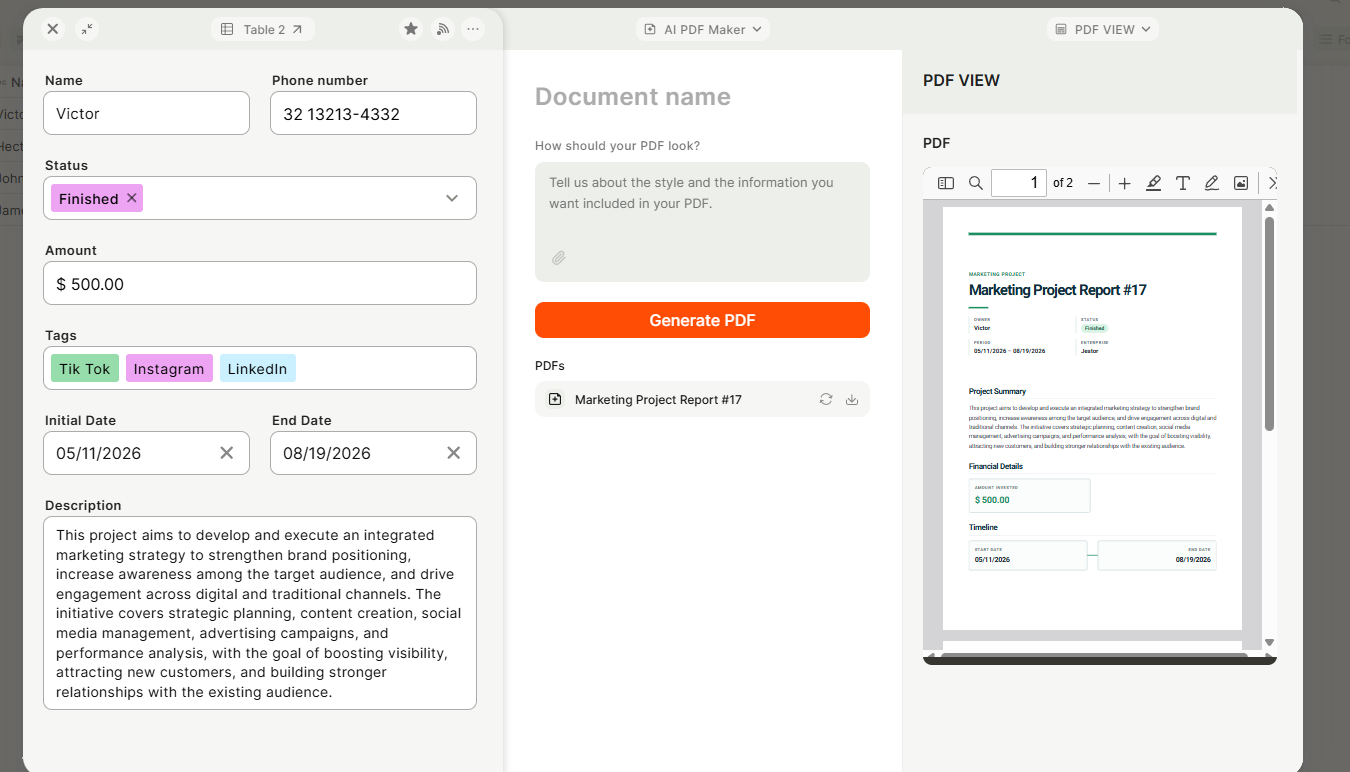
Turn any record into a polished PDF report in seconds. Just describe the style and content you want in plain language, and AI builds the report for you, no templates, no design work.
In short
- What you can do: generate a PDF report from a record's fields and connected data using AI; save the generated PDF to an attachment field; set default report rules (style, structure, elements to include) at the tool level.
- How to start: In your form's edit mode, click + Add an item and select PDF Maker from the list of form tools.
- Keep in mind: PDF Maker does not guarantee an identical layout every time, because it's AI-generated, results can vary slightly between requests, even with the same rules.
Capabilities
- Generate a PDF report from a record's fields and connected data using AI
- Save the generated PDF to an attachment field
- Set default report rules (style, structure, elements to include) at the tool level
- Override or refine those rules with a custom prompt each time a report is generated
- Include data from connected/related tables in the report
- Pull images from an attachment or image field into the PDF
- Add company branding: the account's default logo, a custom logo, or no logo
- Use an uploaded file or image as a style reference for the AI to follow
- Regenerate the most recent report with adjustments, without starting over
- Keep a history of every PDF generated for the record, each available for download or deletion
Use cases and examples
Use PDF Maker when you want to:
- Turn a deal or opportunity into an executive summary for a manager, with probability, forecast, and next steps
- Create a purchase report that includes connected budgets or quotes and a signature area for approval
- Send a client-facing proposal or report without giving the client access to the system
- Generate a cleaning or maintenance report that pulls in photos from an attachment field
- Request a quick internal summary to support an exception, such as a discount approval
How to configure
Step 1
Add PDF Maker: In your form's edit mode, click + Add an item and select PDF Maker from the list of form tools. The edit panel opens on the right side.
Step 2
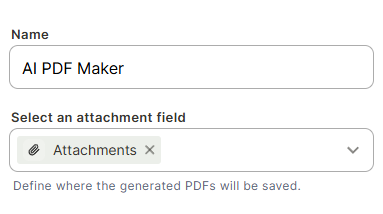
Choose the attachment field: Select the field where the generated PDF will be saved. You can add more than one PDF Maker tool to the same form if you need to save reports to different fields.
Step 3
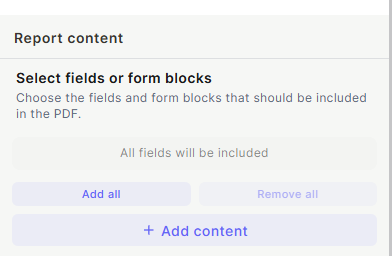
Choose the fields to use: Select which fields from the record will be available to the AI when building the report, or click Add all to make every field available.
Step 4
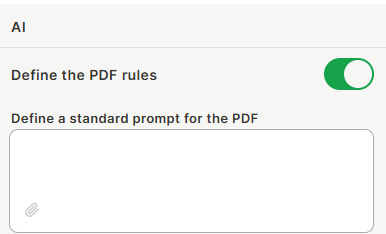
Set the rules: Describe, in plain language, how the report should look and what it should contain: tone, structure, sections, colors, and elements such as a signature area. These rules are saved for the tool and reused every time a report is generated from it.
Step 5 (optional)
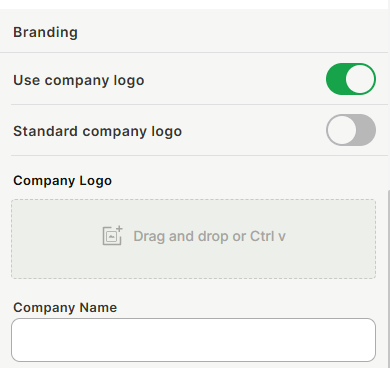
Set up branding: Choose whether to use the account's default logo, upload a different logo or image, or generate the report without a logo. This can also be set per company name if your workspace serves multiple entities.
Step 6 (optional)
Add a style reference: Attach a PDF, image, or screenshot showing the layout you want the AI to follow. A previously generated report can also be used as a reference to keep future reports consistent.
Step 7 (optional)
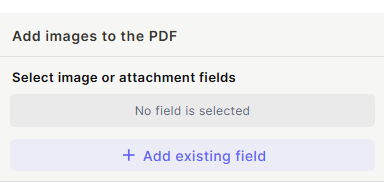
Pull in images: If the record has an image or attachment field with photos, tell the AI to use that field so the images are included in the report.
Save the configuration.
Keep in mind
-
PDF Maker does not guarantee an identical layout every time, because it's AI-generated, results can vary slightly between requests, even with the same rules.
-
The rules and branding are saved at the tool level, not per record. To change them permanently, edit the tool's configuration rather than the per-generation prompt.
-
Regenerating a report replaces the version being adjusted with a new one; it does not merge changes into the existing file.
-
PDF Maker doesn't send the report to anyone by itself. To notify someone or share it automatically, connect it to a separate automation.
-
The AI only uses the fields, connected data, and attachments you've made available to the tool. It can't pull in information you haven't selected.
-
Usage of PDF Maker is tracked as its own consumption metric, visible in Usage.

FAQ
1. Can I use a different style for each report, even from the same tool?
Yes. Type instructions in the prompt box when generating the report. These are combined with the saved rules and don't change the tool's default configuration.
2. Can I skip typing a style prompt every time?
Yes. If you leave the prompt box blank, the report is generated using only the rules saved in the tool. You can also disable the prompt box entirely so it isn't shown at all.
3. Can PDF Maker include data from connected tables?
Yes. If the record has connected records, such as multiple quotes, you can ask the AI to include them in the report, for example as a table.
4. What happens if I don't name the report?
It's generated anyway, with an automatically assigned file name. Naming it is optional.
5. Can I use a previous report as a style reference for new ones?
Yes. Attach a report PDF Maker previously generated as the style reference, and new reports will follow the same layout and formatting.
6. Does PDF Maker replace automation-based PDF generation?
No. Automation-based PDF actions always follow the same fixed rule and are best for consistent, repeatable documents. PDF Maker is faster to adjust on the fly and better suited for one-off or variable reports, though it won't produce an identical result every time.
Updated 1 day ago