
Kanban Forms
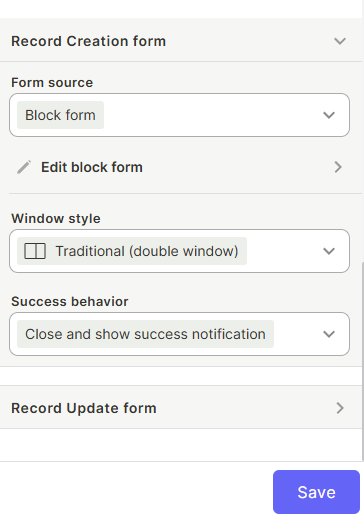
The Forms section inside Smart Kanban controls which form is shown when a user creates or updates a record from the kanban board. It is divided into two independent configurations: Record Creation Form and Record Update Form.
For instructions on how to configure the form itself (fields, conditionals, style, and tools), see the Super Form page.
Capabilities
- Choose the form source for record creation and record update independently
- Edit the block form directly from the kanban settings
- Select the window style in which the form opens
- Define what happens after the form is submitted
How to configure
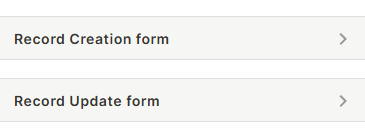
Both Record Creation Form and Record Update Form share the same settings structure:
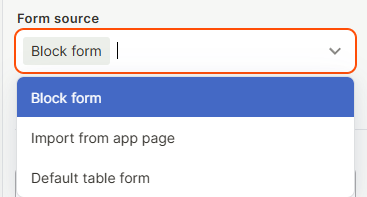
Form source
Use the Form source dropdown to choose which form is used. The options correspond to the three form types available in Jestor:
- Block form — Uses the form configured specifically for this kanban block. Click Edit block form to configure it. To learn how to configure a block form, see Super Form.
- Table form — Uses the standard form configured at the table level (Record Creation Form or Record Update Form, depending on the context). To learn how to configure a table form, see Super Form.
- Import App Page — Uses a Super Form block that exists as a dedicated block in another app. To learn how to configure an app form, see Super Form.
Edit block form
Appears when Block form is selected as the source. Click it to open the form editor for this block's form.
Window style
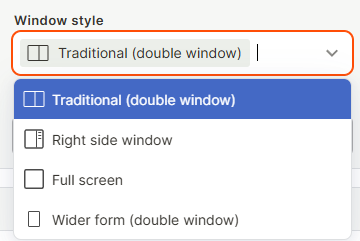
Use the Window style dropdown to choose how the form opens when triggered from the kanban. The available options are:
- Traditional (double window) — Opens the form in a side panel alongside the kanban view.
- Right side window — Opens the form as a panel anchored to the right side of the screen.
- Full screen — Opens the form taking up the full screen.
- Wider form (double window) — Opens the form in a wider side panel alongside the kanban view.
Success behavior
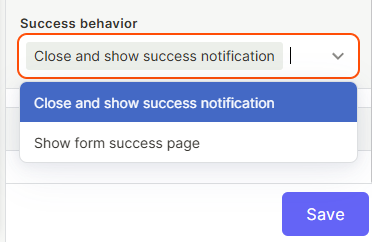
Use the Success behavior dropdown to define what happens after the form is submitted. The available options are:
- Close and show success notification — Closes the form and displays a confirmation notification. Commonly used for the Record Creation Form.
- Keep form open — Keeps the form open after submission. Commonly used for the Record Update Form when users may need to make further edits.
Keep in Mind
- The Record Creation Form and Record Update Form are configured independently — changing one does not affect the other.
- If Table form or App form is selected as the source, changes to the form must be made where that form is configured — not from within the kanban block settings.
- The form content (fields, conditionals, style) is configured inside the form itself — the settings here only control the source, how it opens, and what happens after submission.
FAQ
1 — What is the difference between Block form, Table form, and App form?
A Block form is configured specifically for this kanban block and does not affect any other context. A Table form is the standard form configured at the table level and is shared across all places that use it. An App form is a Super Form block placed as a standalone block elsewhere in the app. All three are configured the same way — the difference is where they live and what other contexts they affect. For a full explanation, see Super Form.
2 — If I change the Form source from Block form to Table form, is the block form lost?
No. The block form configuration is preserved. Switching back to Block form restores it.
3 — Can I use different window styles for creation and update?
Yes. The Record Creation Form and Record Update Form each have their own Window style setting, so they can open differently.
Updated 15 days ago