
Order Generator
The Order Generator block lets users create new orders directly from an app page, working like a shopping cart in an e-commerce experience. Users can add products, services, or both to an order, set quantities, and submit — all without leaving the app interface.
For instructions on how to add a block to your app, see the Blocks page.
Capabilities
- Display a product list for users to add to an order
- Display a service list for users to add to an order
- Automatically calculate and save the total cost and quantity per item in the Order Items table
- Apply optional filters to control which products, services, or orders are shown
- Connect the block to existing tables (Orders and Order Items) in your Jestor database
Use Cases and Examples
- A sales team uses the block to create customer orders by selecting products from a catalog and entering quantities, with totals calculated automatically
- A service company uses it to build orders that include both billable services and physical materials in the same cart
- An internal operations team uses it to generate purchase requests, restricting visible items with filters based on department or category
Setup
Step 1 — Basic configuration
Give the block a Name and select the Order table — the table where each order record will be saved. Then select which fields from that table should be visible or editable in the block.
You can optionally set Filters to restrict which order records the block interacts with.
Step 2 — Configure the Order Items table
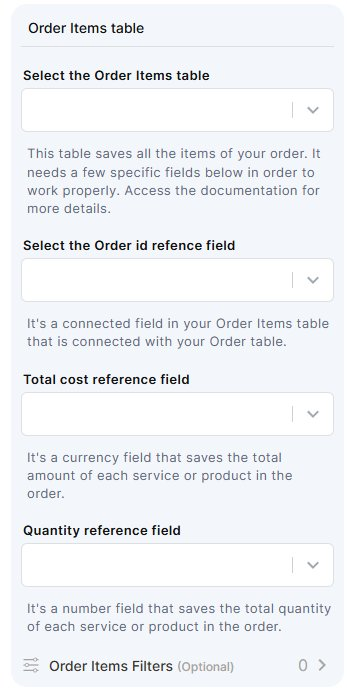
Select the Order Items table — the table that stores each line item of an order. This table must already exist and have the following fields:
- Order id reference field — a connected field linking the Order Items table to the Order table
- Total cost reference field — a currency field that saves the total amount for each item
- Quantity reference field — a number field that saves the quantity of each item
You can optionally set Order Items Filters.
Step 3 — Enable Products and/or Services
You must enable at least one of the two options below:
Products
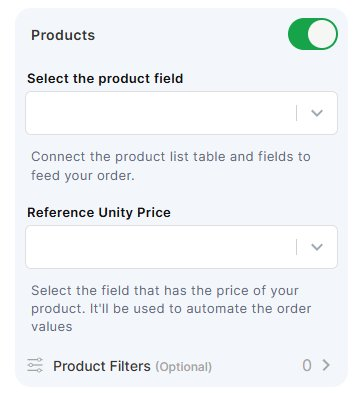
Toggle on Products to allow users to add products to orders. Then:
- Select the product field — a connected field that links to your product list table
- Select the Reference Unity Price — the field in your product table that holds the unit price, used to automate order value calculations
- Optionally set Product Filters
Services
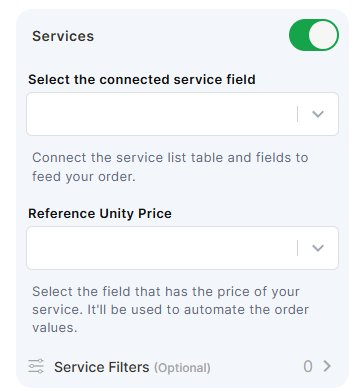
Toggle on Services to allow users to add services to orders. Then:
- Select the connected service field — a connected field that links to your service list table
- Select the Reference Unity Price — the field in your service table that holds the unit price, used to automate order value calculations
- Optionally set Service Filters
Step 4 — Create the block
Click Create to add the block to your app page.
Keep in Mind
- The block does not create the Order table or Order Items table for you — both must exist before configuring the block
- The block does not work without at least one of Products or Services enabled
- The Total cost reference field is not a formula field — it is populated automatically by the block based on unit price × quantity, but it must be a currency field already in the Order Items table
- The block does not support mixed currency types — all prices should use the same currency unit
- Filters set at the block level apply globally and cannot be changed by the end user at runtime
FAQ
1- Do I need both a Products table and a Services table to use this block?
No. You need at least one — either Products or Services. You can enable both if your orders include both types of items.
2- What type of field should the Order id reference field be?
It must be a connected field (relation field) in your Order Items table that points to your Order table.
3- Can I use this block without an Order Items table?
No. The Order Items table is required. It stores the individual line items (products or services) that make up each order.
4- What happens to the Total cost field if I change the unit price of a product later?
The block uses the unit price at the time the order is created. Changing the price afterward does not retroactively update existing order items.
5- Can I filter which products or services appear in the block for the end user?
Yes. Use the Product Filters or Service Filters options during setup to control which records are available when a user is building an order.
Updated 7 months ago