
Menu
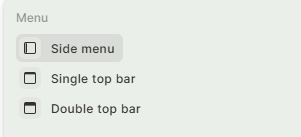
Jestor offers three navigation menu styles. Each user can choose the one that best fits their workflow. The menu style is a personal setting: changing it does not affect other users.
Capabilities
- Switch between three menu styles: Side Menu, Single Top Bar, and Double Top Bar
- Configure layout, sections, and visible tools (Side Menu only)
- Change the menu background color for your entire workspace (Branding)
Menu Styles
Side Menu
A vertical menu on the left side of the screen. It has more space than the top bar, so it can display app names in full and support longer lists. It also has more configuration options.
What's in the Side Menu:
- Jestor tools: Home, Inbox, Chat, Tasks, Docs, Agents, WhatsApp, and others
- Builder buttons: visible to builders only. Includes a Builder Mode toggle (highlighted in orange when active) and a Create button for tables, apps, canvases, and forms
- Automations: quick access to your automations
- Management: Users, Roles, History, and Usage
- Apps & Tools: your main apps for quick navigation
- Favorites: all favorited items in one place. You can copy a link, duplicate an app, or remove a favorite from here. Any record can be favorited and accessed from the menu anywhere in the platform
- Recents: recently visited items
The Search / Create bar and Quick Actions (shortcut: A) are also accessible from the Side Menu.
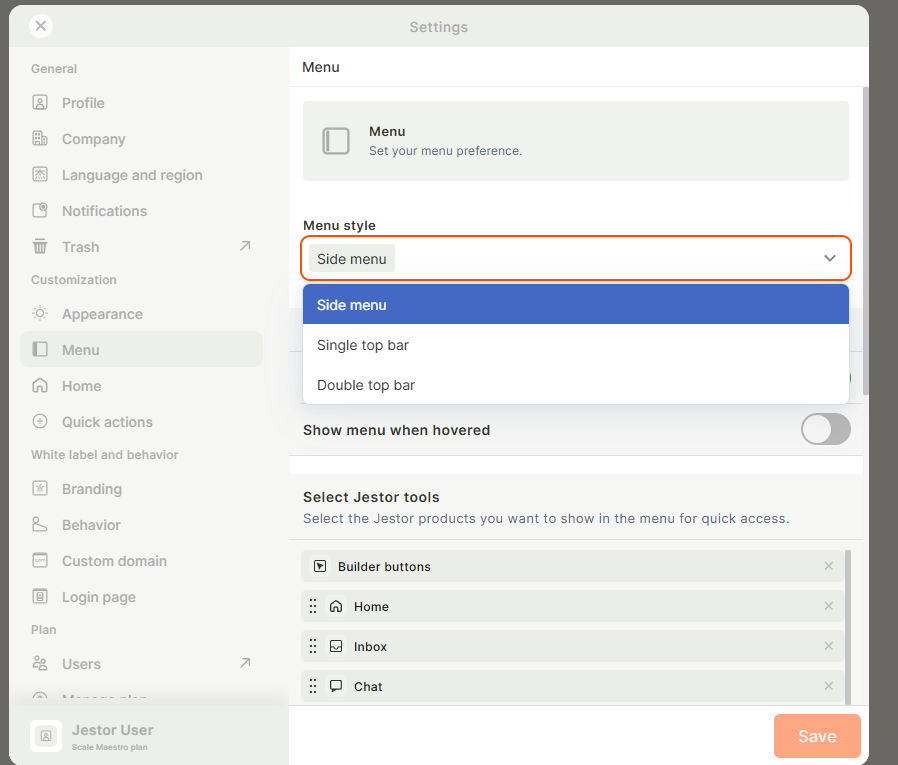
Side Menu configuration: go to Settings → Menu with Side Menu selected:
-
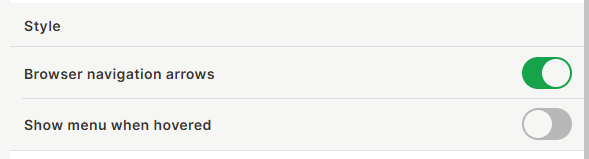
Browser navigation arrows: show or hide back/forward arrows
-
Show menu when hovered: when enabled, the menu opens on hover and closes when you move away (magnetic mode). When disabled, the menu stays in whichever state you left it
-
Select Jestor tools: choose which tools appear in the menu. You can remove items you access via keyboard shortcuts instead (e.g.,
Cto create,Bfor Builder Mode)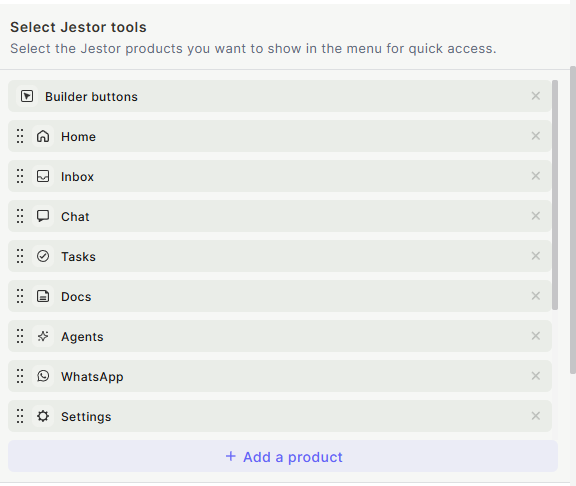
-
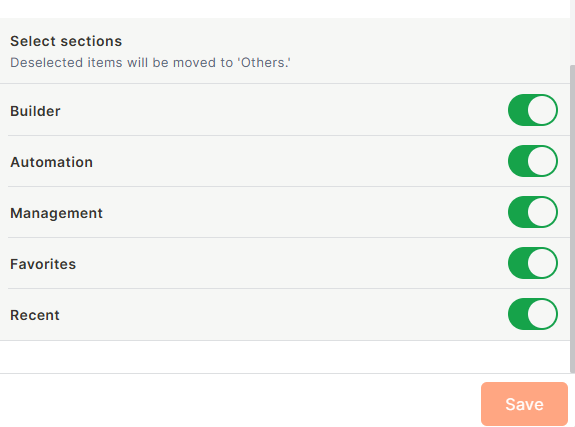
Sections: show or hide sections like Builder, Management, Favorites, and Recents
Single Top Bar
A single horizontal bar at the top of the screen. Compact and straightforward, showing your apps and tools in one row.
Double Top Bar
Two horizontal bars at the top. The first row shows workspace-level navigation; the second shows app-level navigation. Useful when you need both levels visible at the same time.
Switching Menu Styles
Click the user icon and select Side menu, Single top bar, or Double top bar under the Menu section. You can also go to Settings → Menu and change the Menu style dropdown.
Changing the Menu Color
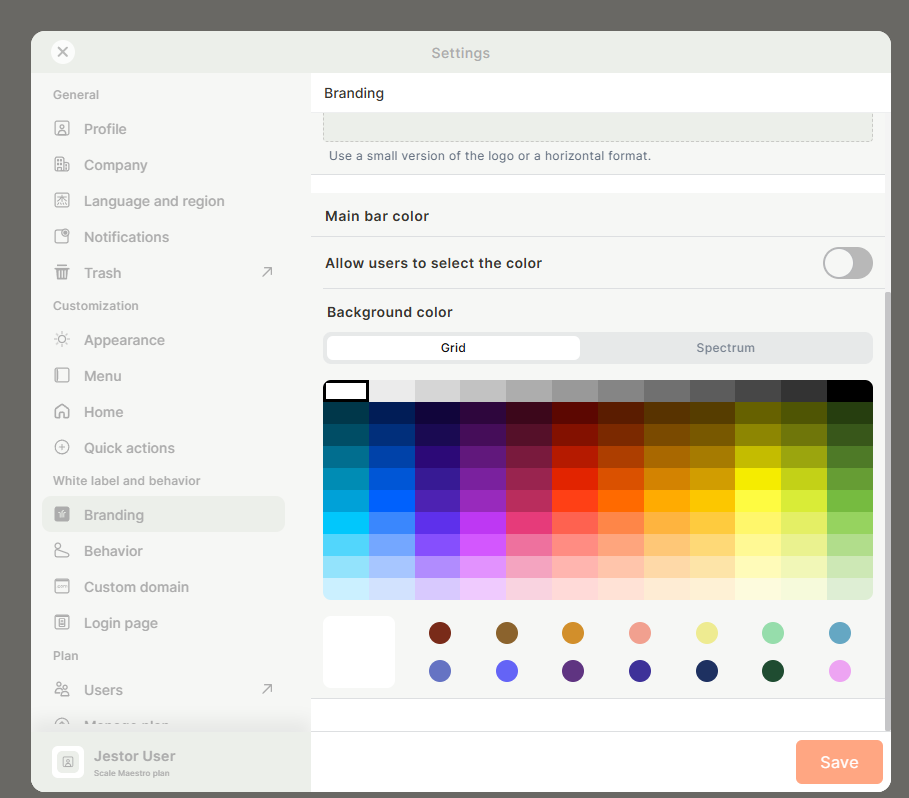
Menu colors are managed in Settings → Branding, not in the Menu settings.
In Branding you can:
- Upload a company logo
- Set the Main bar color: this applies the color to the menu for all users in the workspace
- Toggle Allow users to select the color: when enabled, each user can override the color in their personal Appearance settings; when disabled, the company color is enforced for everyone
To change the color, open the color picker (Grid or Spectrum view), select your color, and click Save.
Updated 7 days ago