
Card Conditionals
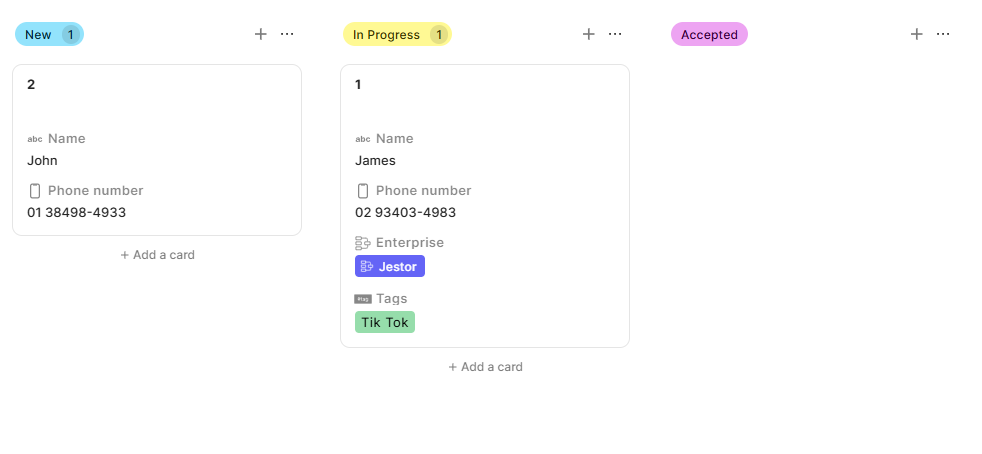
Control which fields and buttons appear on the face of each Kanban card based on rules you define.
For instructions on how to add a block to your app, see the Blocks page. For general Smart Kanban setup, see the Smart Kanban page.
Capabilities
- Show or hide fields on the card face based on field values
- Show or hide buttons on the card face based on conditions
- Set conditions based on any field in the table, not just stage
- Combine multiple show/hide rules across different conditions
- Apply different sets of visible fields for each stage or scenario
How to configure
Step 1
Open Kanban settings: Click the edit icon on your Smart Kanban block to open the configuration panel.
Step 2
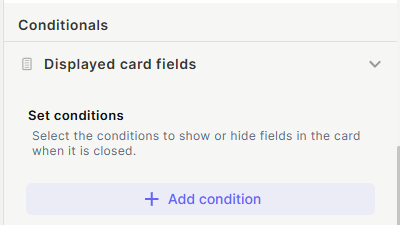
Go to Card Conditionals: In the configuration panel, find the Fields displayed on card section. This sits alongside the color conditionals and form conditionals sections.
Step 3
Add a condition: Click + Add condition to create a new rule.
Step 4
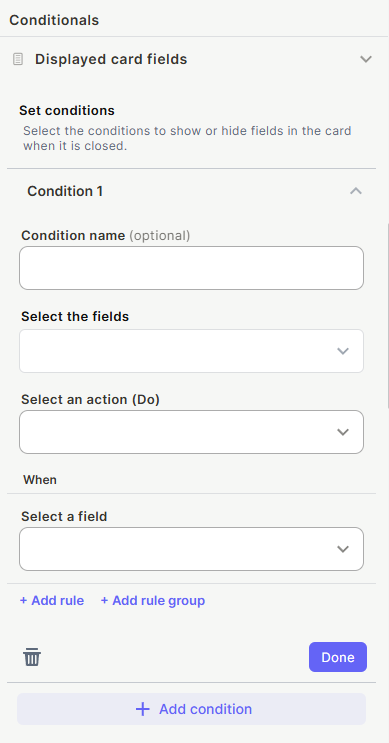
Select the fields or buttons to act on: Choose which fields or buttons this condition will affect.
Step 5
Select an action: Choose whether to Show or Hide the selected fields when the condition is met.
Step 6
Define the rule: Set the criteria that trigger the condition — for example, when the stage field equals "In Review", or when the value field is greater than 5,000.
Step 7
Save and test: Save your settings and move a card between stages (or change a field value) to confirm the right fields appear and disappear as expected.
Use Cases and Examples
The most common use case is stage-based visibility. In a sales pipeline, you might show the Maximum Value and Priority fields only when a deal is in the "Quotation" stage — hiding them in earlier stages where that data isn't relevant yet. This keeps cards clean and focused at every step of the process.
Card Conditionals also work well for button visibility. If you have a "Cancel" button on your card, you can configure it to appear only when a record reaches the "Awaiting Approval" stage, preventing users from triggering that action at the wrong moment.
Another use case is value-based display. You can show a Priority field only when its value is "High", or surface a Total Amount field only when the amount exceeds a set threshold — hiding the field entirely when it's not actionable.
Keep in mind
- Card Conditionals control visibility only — they do not restrict access to fields or enforce permissions. A user who opens the full record can still see and edit all fields regardless of what is hidden on the card face.
- Fields that are already selected as default visible fields will still appear unless a condition explicitly hides them.
- Buttons follow the same conditional logic as fields — you can show or hide them per stage or rule.
- Conditions apply to the card face (the closed card view). They do not affect what appears inside the record when it is opened.
FAQ
1- Can I use Card Conditionals based on something other than stage?
Yes. You can set conditions based on any field in the table — for example, show a field only when Priority is "High", or hide a field when a numeric value is below a threshold.
2- Can I show different fields in different stages at the same time?
Yes. You can add multiple conditions, each targeting a different stage or field value, with different sets of fields to show or hide.
3- Does hiding a field on the card also hide it inside the open record?
No. Card Conditionals only affect the card face. Fields hidden on the card are still fully visible and editable inside the record.
4- Can I apply Card Conditionals to buttons?
Yes. Buttons follow the same logic as fields. You can configure a button to appear only in specific stages or when certain conditions are met.
5- Is this different from Form Conditionals?
Yes. Form Conditionals control what appears inside the record form when it is open. Card Conditionals control what appears on the outside of the card in the Kanban view.
Updated 20 days ago