
Send a Prompt and Get an Answer (Jestor AI)
Use Jestor's native AI to send a custom prompt and save the generated response directly into a field of any record — without leaving the platform or using external tools
What is it
Send a Prompt and Get an Answer with Jestor AI is an automation action that sends a text prompt to Jestor's built-in AI and saves the response into a specified field of a chosen record. The prompt can include dynamic values from your table, making it possible to generate contextual, record-specific content automatically.
When to use
- Automatically summarize information from a record (e.g., generate a summary of a support ticket)
- Generate draft text based on record data (e.g., write a follow-up email body from a contact's details)
- Classify or categorize records based on field content
- Enrich records with AI-generated insights on creation or update
How to configure
Step 1
Create a new automation — This page covers only this action. For instructions on how to access automations and create a new automation, see the Automations page.
Step 2
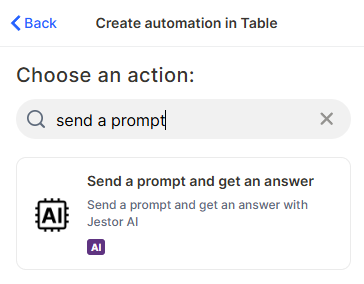
Add the action: In the automation builder, click + Add action and select Send a prompt and get an answer with Jestor AI.
Step 3
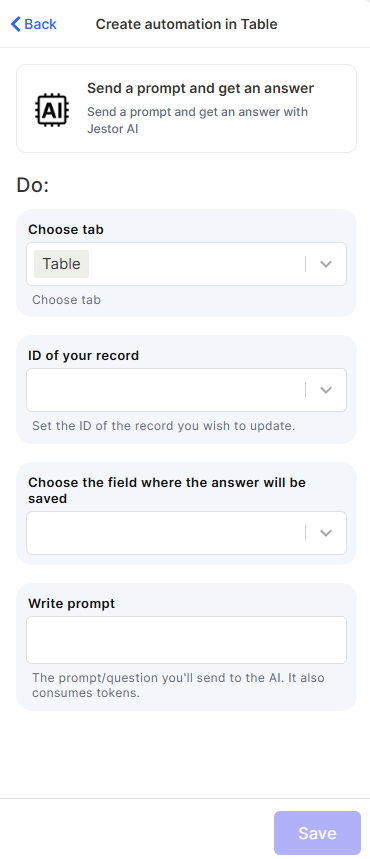
Choose tab: Select the table where the record you want to update is located.
Step 4
Set the ID of your record: Select the field that contains the ID of the record that will receive the AI-generated response. This is the record that will be updated with the answer.
Step 5
Choose the field where the answer will be saved: Select the field in which Jestor AI's response will be written. This field must already exist in the chosen table. Text-based fields work best (e.g., Long Text, Short Text).
Step 6
Write your prompt: Enter the prompt you want to send to the AI. You can use dynamic variables from your automation context (e.g., field values from the triggering record) to make the prompt specific to each record.
Step 7
Save: Click Save to apply the action.
Keep in Mind
- Each execution of this action consumes AI tokens. High-frequency triggers can lead to significant token usage — plan your automations accordingly.
- The action does not read or remember previous executions. Every run sends only the prompt you define, with no conversation history or context from past runs.
- This action cannot update multiple records at once. It targets a single record per execution, identified by the ID you configure.
- The response overwrites whatever is already in the field — there is no append mode. If you need to preserve existing content, include it in the prompt explicitly.
FAQ
1 — Can I use field values from the record inside the prompt?
Yes. You can include dynamic variables in the prompt (e.g., values from the triggering record's fields) to make the AI response specific to each record. Use the variable selector available in the prompt field.
2 — Which field types can store the AI response?
Any text-based field works, such as Short Text or Long Text. Avoid using this action to write into fields with strict format requirements (like Date or Number), as the AI output is plain text and may not match the expected format.
3 — Does this action use the same AI as Jestor's built-in AI assistant?
Yes. It uses Jestor's native AI, the same model powering other AI features in the platform.
4 — What happens if the prompt is empty?
The action will still execute and send an empty prompt to the AI, which may return an irrelevant or generic response. Always validate that the prompt contains meaningful content before saving the automation.
5 — Can I run this action on multiple records at once, for example via a bulk trigger?
No. This action targets one record per execution, defined by the record ID you configure. To process multiple records, you would need a loop-style setup or trigger the automation per record individually.
Updated 7 months ago