
Form Style
Form Style is the section inside Super Form that controls the visual appearance of the form. It is divided into two subsections: Colors, where you set the color of each form element, and Structure and Positions, where you control the layout and sizing of the form.
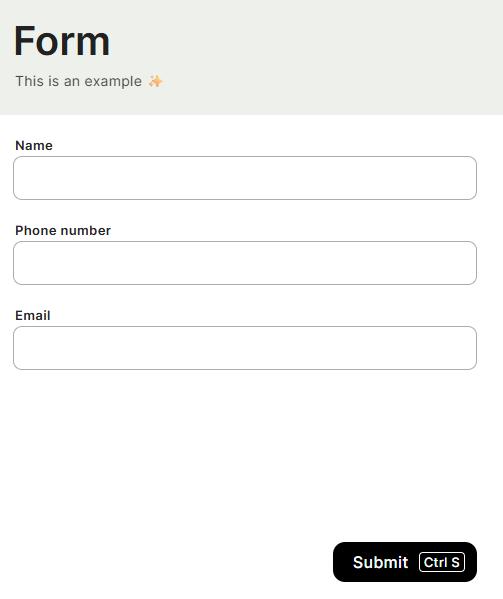
Capabilities
- Set individual colors for background, buttons, title, subtitle, fields, and field borders
- Choose the background type (color or other options)
- Show or hide the form title
- Control whether the title scrolls with the fields or stays fixed
- Reduce the title to a smaller size
- Adjust the form content width
How to configure
Colors
Background — Use the dropdown to select the background type. When set to Color, the Background color picker becomes available to define the fill color of the entire form area.
Background color — Sets the main background color of the form.
Button color — Sets the color of action buttons in the form, including the submit button.
Title background color — Sets the background color of the title area at the top of the form.
Title color — Sets the text color of the form title.
Subtitle color — Sets the text color of the form subtitle or description.
Field title color — Sets the color of the label text above each field.
Field background color — Sets the background color inside each input field.
Field stroke — Toggle on to display a visible border (stroke) around each field. Toggle off to remove it.
Structure and Positions
Hide title — When enabled, the title area is completely hidden from the form. Use this when the form context is already clear and a title would be redundant.
Title scrolls with fields — When enabled, the title scrolls up along with the form fields as the user scrolls down. When disabled, the title stays fixed at the top while the fields scroll beneath it.
Smaller title — When enabled, the title is rendered at a reduced size. Useful when the title needs to be present but should not dominate the form visually.
Form content width — Use the dropdown to control how wide the form content area is. The Regular option uses the default width.
Keep in Mind
- Form Style settings apply to the entire form — individual fields or pages within the same form cannot have different style settings.
- Color pickers that show a "+" icon start without a color assigned. Clicking them opens the color selector.
- Hiding the title with Hide title does not remove the title from the form configuration — it only hides it visually.
FAQ
1 — Can I apply different colors to different pages of the form?
No. Colors are set at the form level and apply uniformly across all pages.
2 — What is the difference between Title background color and Background color?
Background color applies to the entire form area. Title background color applies only to the section that contains the title and description, which typically appears above the fields.
3 — If I enable Hide title and Title scrolls with fields at the same time, what happens?
If the title is hidden, the scroll behavior setting has no effect since there is no title to scroll.
Updated 15 days ago