
Tasks
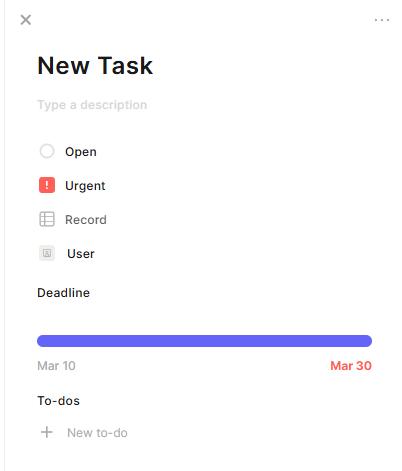
The Tasks field lets you create and manage tasks directly inside a record. Each task can have a title, description, status, priority, deadline, and to-dos (subtasks). Tasks are stored per record, so every row in your table has its own independent task list.
For instructions on how to access field types or how to add one, see Field Types.
Capabilities
- Create tasks with title, description, status, priority, assignee, deadline, and to-dos
- Mark tasks as open or completed
- Set and adjust deadlines using a date selector
- Add to-dos as subtasks within each task
- Link a task to a related record
- Access and manage tasks directly from the table view or from a form
Use Cases and Examples
- Project managers can attach tasks directly to project records, keeping all action items in context without switching to a separate tool.
- Sales teams can create follow-up tasks inside a lead's record — such as sending a proposal or scheduling a call — and assign them to the right rep.
- Support teams can track resolution steps as to-dos within a ticket record, making it easy to see what has been done and what is still pending.
- Operations teams can use the deadline and priority fields to manage time-sensitive tasks tied to specific records, like onboarding steps or contract renewals.
How to add a Tasks field
- Select Tasks from the field type list.
- Enter a name for the field and click Create.
How to create a task
- Open a record (click the edit icon on any row) or open a form.
- Click the + button inside the Tasks field.
- Fill in the task details:
- Title — name of the task (required)
- Description — optional context or notes
- Status — defaults to Open
- Priority — defaults to Not prioritized
- Record — optionally link the task to another record
- Assignee — assign the task to a user in your workspace
- Deadline — set a due date using the date slider
- To-dos — add subtasks by clicking + New to-do
- Click Create (or press Ctrl+S) to save the task.
You can also click the + icon directly in the Tasks cell from the table view to create a task without opening the full record.
Keep in mind
- The Tasks field does not create a standalone task management board — tasks exist only inside the record they were created in.
- Tasks are not shared across records. Adding a task to one row does not affect other rows.
- Deleting a record also deletes all tasks associated with it.
FAQ
1- Can I see all tasks across all records in one place?
Not directly from the Tasks field. Tasks are scoped to individual records. To centralize task tracking, consider using a dedicated table for tasks and linking it to your main table with a relationship field.
2- Can I set a task as completed?
Yes. When viewing a task, you can change its status from Open to a completed state.
3- Is the Tasks field available in automations?
The Tasks field can be read and referenced in automations, but task creation through automations depends on the actions available in your automation setup. Check the Automations page for details.
4- Can I add multiple tasks to a single record?
Yes. There is no limit to the number of tasks you can add to a record.
Updated 7 months ago