
Navigation Buttons
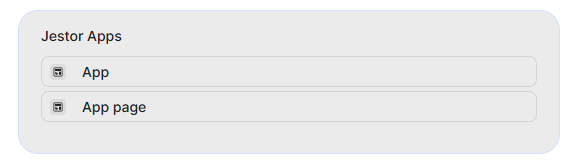
The Navigation Buttons block adds a navigation panel to your app, letting users quickly jump to apps, tables, or specific sections — displayed as a list, buttons, or app shortcuts.
For instructions on how to add a block to your app, see the Blocks page.
Capabilities
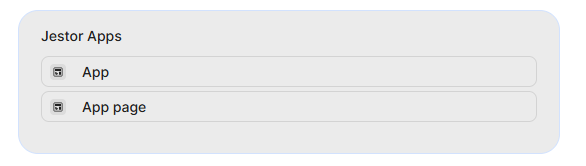
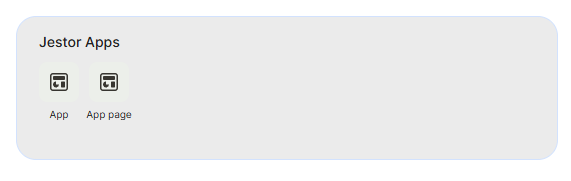
- Choose between three navigation display types: List, Button, or Apps
- Add one or more apps or tables as navigation destinations
- Organize items into sections for better structure
- Customize the visual style with background color, stroke, round corners, and item category labels
- Toggle a transparent background to blend the block with your app's design
Use cases and examples
Use the Navigation Buttons block when you want to:
- Give users a quick-access panel to jump between tables or apps without leaving the current page
- Build a dashboard landing page with large buttons pointing to the main areas of your workspace
- Group navigation links into labeled sections to separate different workflows or departments
- Display app shortcuts in a visual grid layout using the Apps navigation type
How to configure
Step 1
Add the block: Inside your app page in edit mode, add a Navigation Buttons block. The edit panel will open on the right side.
Step 2
Set the name: In the name field at the top, enter a label for this navigation block. The default is "New Navigation Buttons".
Step 3
Choose the navigation type: Open the Navigation type dropdown and select one of the three options:
- List — displays navigation items as a vertical list
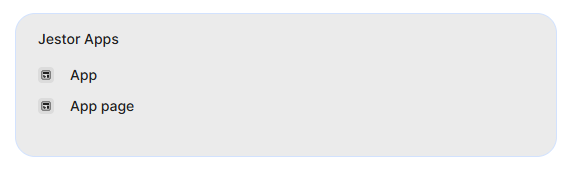
- Button — displays each item as a clickable button
- Apps — displays items as app icon shortcuts
Step 4
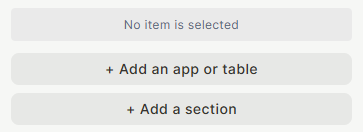
Add destinations: Click + Add an app or table to add a navigation item. Select the app or table you want users to be able to navigate to. Repeat for each destination you want to include.
Step 5 (optional)
Add sections: Click + Add a section to create a labeled group. Sections help organize your navigation items into categories, useful when you have many destinations.
Step 6
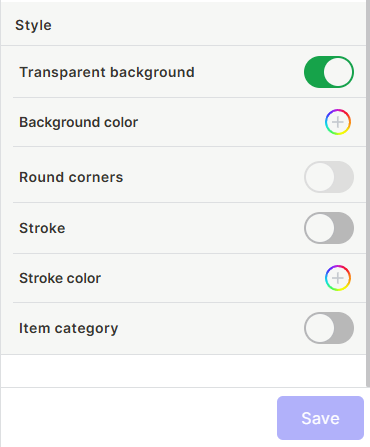
Configure the style: Scroll down to the Style section and adjust the appearance:
- Transparent background — when enabled, the block background becomes transparent, blending with the app background. When disabled, use Background color to set a solid color.
- Background color — sets the background color of the block (available when Transparent background is off).
- Round corners — rounds the corners of the block container.
- Stroke — adds a border around the block. When enabled, use Stroke color to choose the border color.
- Item category — when enabled, displays a category label alongside each navigation item.
Step 7
Save: Click Save to apply all settings.
Keep in mind
- The Navigation Buttons block does not control access permissions — users who cannot access a table or app will still see the button, but will be denied access when they try to navigate to it.
- Sections are visual organizers only — they do not affect how navigation works, only how items are grouped visually.
- The Apps navigation type is designed for app shortcuts and may not display regular table links the same way as List or Button types.
- Transparent background and Background color are mutually exclusive — enabling Transparent background disables the color picker.
FAQ
1 — What is the difference between List, Button, and Apps navigation types?
All three types link to the same destinations, but display them differently. List shows items in a compact vertical format. Button gives each item its own clickable button element. Apps renders shortcuts in a grid-style layout similar to an app launcher.
2 — Can I reorder the navigation items?
Yes, items can be reordered by dragging them within the edit panel.
3 — Does the Navigation Buttons block work on mobile?
Yes, the block renders on mobile, but the display may adapt depending on the navigation type and screen size.
4 — What happens if I delete an app or table that is linked in this block?
The navigation item will remain in the block configuration but will stop working. You will need to remove it manually from the block settings.
Updated 7 months ago