
WhatsApp Indicator
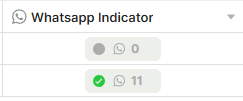
The WhatsApp Indicator field shows how many messages a record's WhatsApp conversation has and, by color, who sent the last one.
For instructions on how to access field types or how to add one, see Field Types.
Capabilities
- Displays the total number of messages exchanged in the conversation linked to that record
- Shows a green indicator when your side sent the last message
- Shows a yellow indicator when the other person sent the last message
- Shows a gray indicator when nobody sent a message
- Updates automatically as new messages are exchanged
Use Cases and Examples
- Customer support teams can scan the list view and instantly see which conversations are waiting for a reply (yellow indicator), without opening each record individually.
- Sales teams can use the message count to gauge how engaged a lead is before a follow-up call.
- Managers can monitor response activity across the team by filtering or sorting records by indicator status.
Prerequisites
Before you can add a WhatsApp Indicator field, WhatsApp must be enabled on the table. For instructions on how to do that, see WhatsApp Integration.
How to add
Step 1: Open the table where WhatsApp is already enabled.
Step 2: Add a new field and select WhatsApp Indicator as the field type.
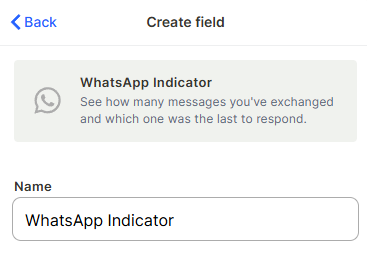
Step 3: Give the field a name and click Create.
Keep in mind
- The WhatsApp Indicator does not send or receive messages. It only displays information about the conversation.
- It does not show the content of individual messages, only the count and who last replied.
- The field will not appear if WhatsApp has not been enabled on the table first.
FAQ
1- Can I add a WhatsApp Indicator without enabling WhatsApp on the table first?
No. WhatsApp must be activated on the table before the field can be created and will display data correctly.
2- What does the green color mean?
Green means your side sent the last message in that conversation.
3- What does the yellow color mean?
Yellow means the other person sent the last message in that conversation.
4- What does the gray color mean?
Gray means that nobody sent a message in that conversation.
5- Does the indicator update in real time?
Yes. The indicator reflects the current state of the conversation and updates automatically as new messages are exchanged.
Updated 1 day ago