
Send a Prompt and an Image to Get an Answer (ChatGPT)
Use this action to send an image stored in Jestor — along with a written prompt — to OpenAI's ChatGPT and save the AI-generated response directly into a record field. It is useful for automating visual analysis, content generation from images, and data extraction workflows.
When to Use
- Automatically extract data from invoices, receipts, or documents uploaded as images
- Classify or describe the content of an image stored in a file or image field
- Generate a text summary or analysis based on a photo attached to a record
- Combine visual input with a written instruction to produce structured or formatted output
How to Configure
Step 1 — Create a new automation
This page covers only the Send a prompt and an image to get an answer (ChatGPT) action. For instructions on how to access automations and create a new automation, see the Automations page
Step 2 — Set the trigger
Under When, select your trigger. For this example, select When a new record is created.
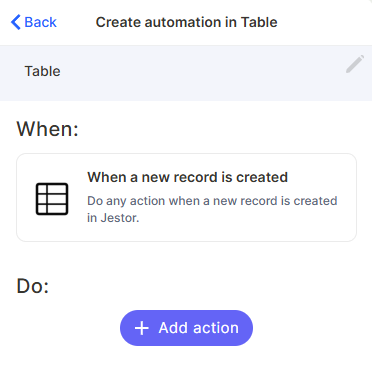
Step 3 — Add the ChatGPT action
Under Do, click + Add action. In the search bar, type send a prompt image chatgpt and select Send a prompt and an image to get an answer.
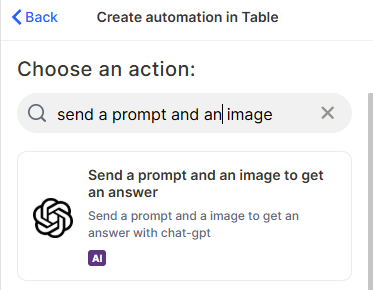
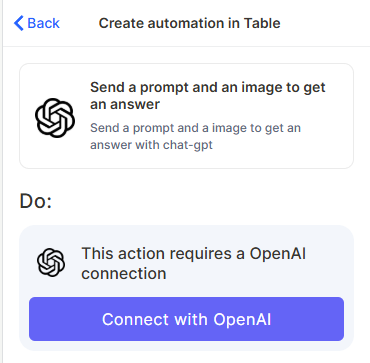
Step 4 — Connect your OpenAI account
The action requires an OpenAI connection. Click Connect with OpenAI and complete the authentication flow. This only needs to be done once per workspace.
Step 5 — Choose tab
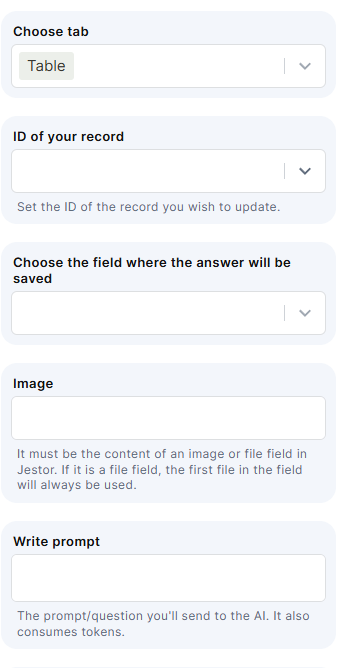
In the Choose tab dropdown, select the table whose record you want to update with the AI response. This is usually the same table where the automation lives.
Step 6 — ID of your record
In the ID of your record field, select the field that holds the record's ID. This tells Jestor which record to write the response to.
Step 7 — Choose the field where the answer will be saved
Select the field in your table where ChatGPT's response will be stored. This field must already exist in the table — the automation will not create it automatically. Use a Long Text field for most use cases.
Step 8 — Image
Set the image source. Select a field from your record that contains the image or file you want to send to ChatGPT. It must be the content of an image field or a file field in Jestor. If it is a file field, the first file in the field will always be used.
Step 9 — Write prompt
Write the prompt you want to send to ChatGPT alongside the image. You can reference field values from the current record using dynamic variables. Be specific — the quality of the prompt directly affects the quality of the response. The prompt also consumes tokens.
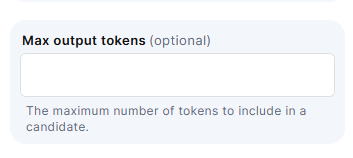
Step 10 — Max output tokens (optional)
Set a limit on the length of the response. If left empty, the model will use its default limit.
Step 11 — Save
Click Save to finalize the action, then Create to activate the automation.
Keep in Mind
- The response is saved directly to the field — there is no preview or approval step before the content is written.
- This action does not create records — it only updates an existing field in an existing record. If you need to create a record with the response, combine this action with a Create record action.
- Always use Jestor's dynamic variable selector to insert field references into the prompt. Typing the variable name manually may cause validation errors if the name doesn't match the field exactly.
- The action does not return structured data automatically — if you need JSON or a specific format, instruct the model in your prompt and parse the output separately.
- The action does not support multi-turn conversations — it sends one prompt with one image and receives one response. There is no memory of previous runs.
FAQ
1 — Does this action work with any trigger, or only "When a new record is created"?
It works with any trigger. The When a new record is created trigger is used as an example in this guide. You can use it with When a field is updated, scheduled triggers, and others.
2 — Can I send multiple images in a single automation run?
No. This action processes one image per run. If you need to analyze multiple images, trigger separate automations or restructure your data so each record holds one image.
3 — How is this different from the "Send a Prompt and Get an Answer" action?
The text-only action sends just a prompt to ChatGPT. This action adds an image alongside the prompt, enabling visual analysis. Use the image version only when the content you need to analyze is visual — it consumes more tokens.
4 — Can I use a dynamic value inside the prompt field?
Yes. You can reference field values from the triggering record inside the prompt — for example, including a record's name or category as part of the instruction sent to the AI alongside the image.
Updated 7 months ago