
Radio Select
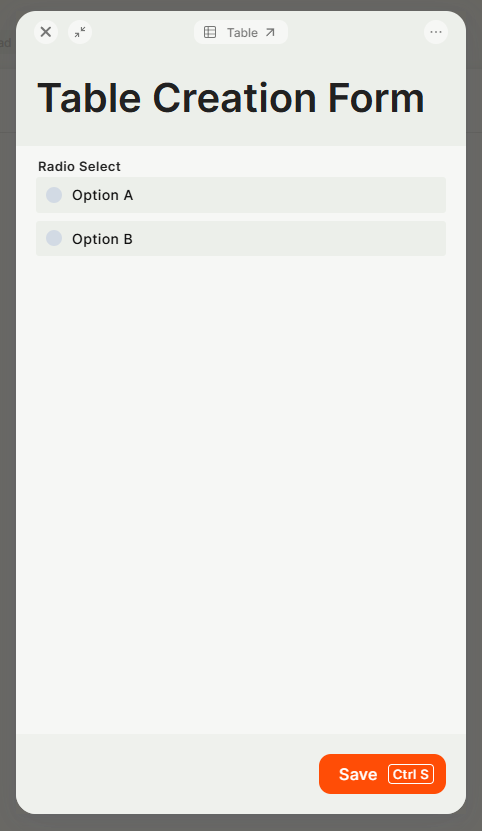
A single-choice selection field that displays options as radio buttons. Users can pick only one option from a predefined list.
For instructions on how to access field types or how to add one, see Field Types.
Capabilities
- Define a fixed set of options for users to choose from
- Ensure only one option is selected per record
- Reference the selected value in formula fields and automations
- Mark the field as required to enforce selection before saving a record
Use Cases and Examples
- Sales teams can use a Radio Select to track deal stage — such as Prospecting, Proposal Sent, or Closed Won — ensuring each record has a single, consistent status.
- HR teams can add a Radio Select for employment type (Full-time, Part-time, Contractor) so records are always categorized with a controlled value.
- Support teams can set priority levels (Low, Medium, High, Critical) on ticket records and use the selected value as a condition in automations to route or escalate accordingly.
- Operations teams can reference the selected option in formula fields to calculate outcomes based on the current status of a record.
How to Configure
Step 1
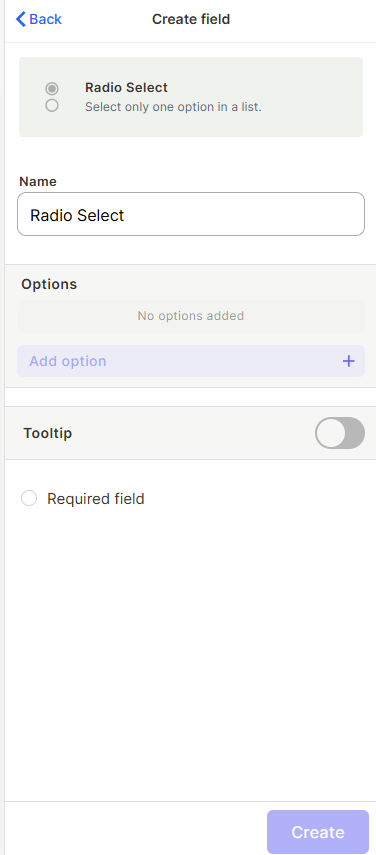
Name the field: Enter a name in the Name field to identify this field in your table.
Step 2
Add options: Click Add option to create the choices users will see. Repeat this step for each option you want to include.
Step 3 (optional)
Add a tooltip: Enable the Tooltip toggle and enter a short description to guide users on how to fill in this field.
Step 4 (optional)
Mark as required: Check Required field if this field must be filled before a record can be saved.
Step 5
Create: Click Create to add the field to your table.
Keep in Mind
- This field does not allow selecting multiple options — only one option can be chosen per record.
- This field does not support free-text input — users can only select from the options you define.
FAQ
1 — Can I reorder the options after creating them?
Yes, you can reorder options by editing the field configuration after it has been created.
2 — Can I add more options after the field is already in use?
Yes. You can edit the field at any time to add, rename, or remove options without losing data already stored in existing records.
3 — Can I use Radio Select values in formulas or automations?
Yes. The selected option is treated as text and can be referenced in formula fields and used as conditions or values in automations.
Updated 17 days ago