
Connected Records (N:1)
The Connected Records (N:1) field lets you link a record in the current table to a record in another table, establishing a many-to-one relationship
For instructions on how to access field types or how to add one, see Field Types.
Capabilities
- Connect each record (child) to a single parent record in another table
- Display connected record data directly as a label on the current record
- Filter which records are available for selection in the connection
- Sort the list of available records
- Customize the field's icon and color
- Choose how the record update form opens (window style)
- Set a success behavior after the form is submitted
How it works
Each record in the current (child) table can be connected to one record in the parent table. The relationship is directional: one parent can have many children, but each child points to only one parent.
When you create a Connected Records (N:1) field, Jestor automatically creates a summary of connected records on the parent table, so you can see all children linked to a given parent record.
Configuration options
Name — The label for the field displayed on the table and records.
Select a table — The parent table that records in the current table will connect to.
Select as label — A field from the parent table used to identify the connected record visually on the current record.
Filters and conditions (optional) — Restrict which parent records appear as options when making a connection. Useful when you only want to show records that meet certain criteria.
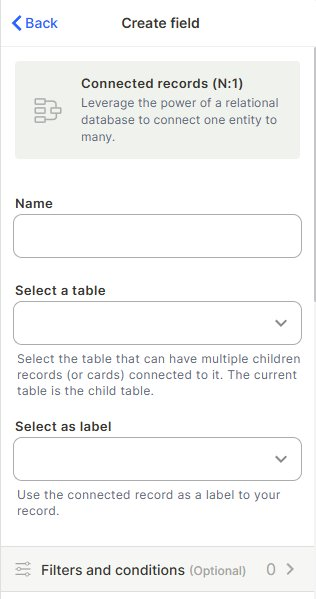
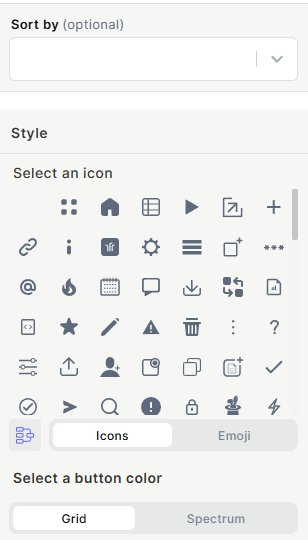
Sort by (optional) — Defines the order in which available records appear in the selection list.
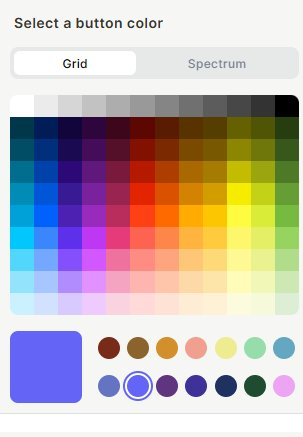
Style — Choose an icon (from the icon library or emoji set) and a button color to visually distinguish the field.
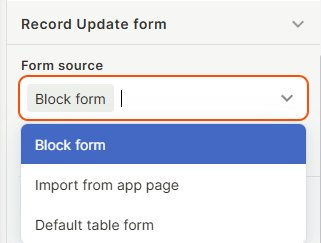
Form source — Defines the form used when updating the connected record. Options: Block form, Import from app page, Default table form. For more information about Forms, see Super Forms.
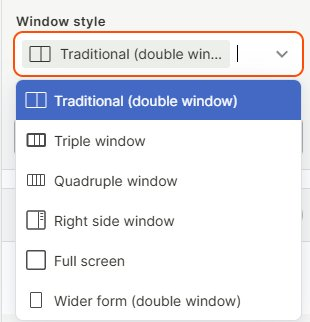
Window style — How the record form opens when accessed through this field. Options: Traditional (double window), Triple window, Quadruple window, Right side window, Full screen, Wider form (double window).
Success behavior — What happens after the form is submitted (e.g., Keep form open).
Tooltip — Optional tooltip text shown to users when hovering over the field.
Required field — When enabled, a connection must be set before saving the record.
Use cases and examples
Client–Ticket relationship — Create a "Clients" table and a "Tickets" table. Add a Connected Records (N:1) field on "Tickets" pointing to "Clients." Each ticket connects to one client, and the client record automatically shows a summary of all its tickets.
Companies and Contacts — Store leads in a "Companies" table and their contacts in a "Contacts" table. A Connected Records (N:1) field on "Contacts" links each contact to its company, making it easy to see all contacts per company.
Sales orders and vendors — In a purchasing flow, link each purchase to a single vendor using a Connected Records (N:1) field. The vendor record then aggregates all purchases attributed to it.
Keep in mind
- This field only supports N:1 relationships — each child record connects to one parent, not multiple. For many-to-many relationships, a different structure is needed.
- Once the field is created and a target table is selected, the target table cannot be changed. If you need to connect to a different table, you must create a new field.
- The automatic summary created on the parent table is read-only and cannot be edited directly from the parent side.
- Deleting the Connected Records field removes the connection data but does not delete the records themselves on either table.
- The "Select as label" option only affects how the connected record is displayed — it does not change the underlying data or the connected record itself.
- Filters and conditions applied to the field restrict which records appear during selection, but do not affect records that were connected before the filter was applied.
FAQ
1- What is the difference between Connected Records (N:1) and a lookup field?
Connected Records (N:1) creates an actual relational link between two records. A lookup field reads and displays a value from an already-connected record. You need the connection first, then lookups can pull data through it.
2- Can I connect to more than one table with the same field?
No. Each Connected Records (N:1) field points to a single target table. To connect to multiple tables, create separate fields for each.
3- Can I filter which records appear in the connection dropdown?
Yes. Use the Filters and conditions option during field creation or editing to restrict the records available for selection.
4- What happens to existing connections if I change the target table?
No. Once the field is created and linked to a table, the target table is locked and cannot be changed. If you need to point to a different table, delete the field and create a new one.
Updated 6 months ago