---
updatedAt: 2026-10-29T23:52:34.000Z
agentTools:
projectIndex: https://docs.jestor.com/llms.txt
---
# Smart Kanban
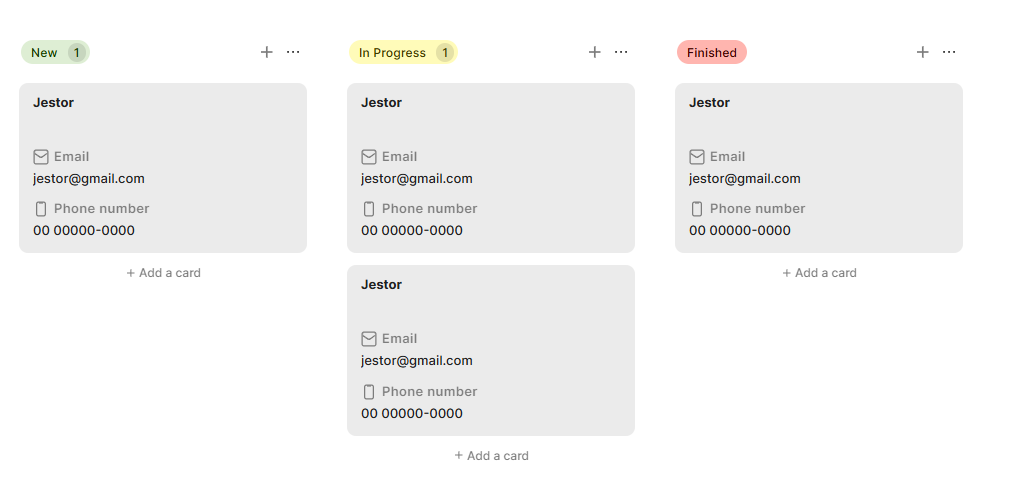
Smart Kanban shows table records as cards in stage columns, with custom card styles, forms, permissions and time-in-stage metrics.
## In short
* **What you can do:** display records as cards grouped by any field in the table; select which fields appear on each card; filter and sort records shown in the kanban.
* **How to start:** Open the Select a table dropdown and choose the table whose records will be displayed as cards.
* **Keep in mind:** The Select a field dropdown defines the stages, only fields with discrete values (like Select or Status) produce meaningful columns.
> For instructions on how to add a block to your app, see the Blocks page.
## Capabilities
* Display records as cards grouped by any field in the table
* Select which fields appear on each card
* Filter and sort records shown in the kanban
* Customize card colors, size, and visual options
* Apply conditional colors to cards based on field values
* Track stage time metrics with Stage SLA
* Control user permissions (read-only, drag and drop, kanban editing)
* Configure record creation and update forms directly in the block
## Use Cases and Examples
Smart Kanban works well for sales pipelines, where each stage represents a step in the funnel and cards are deals or leads. Teams can drag cards between stages as deals progress, and use conditional card colors to highlight urgent or high-value records at a glance.
It also fits project and task management workflows: stages become task statuses (To Do, In Progress, Done), and team members can create and update records directly from the kanban without leaving the app.
## How to configure
**Step 1**
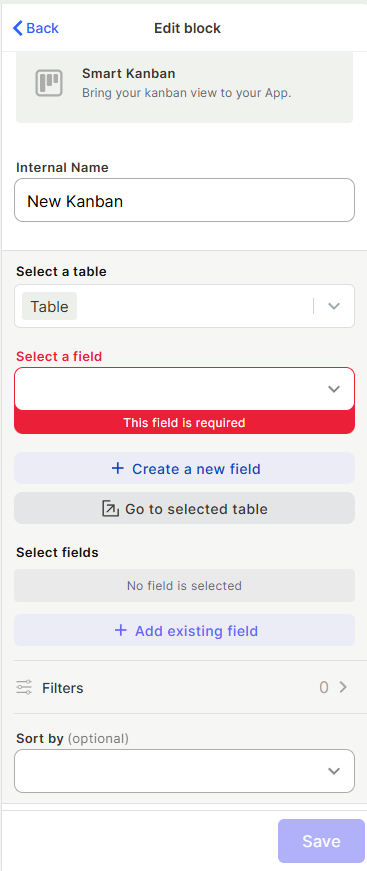
**Set the internal name:** In the **Internal Name** field, type a name to identify this kanban block in the editor. This name is not visible to end users.
**Step 2**
**Select a table:** Open the **Select a table** dropdown and choose the table whose records will be displayed as cards.
**Step 3**
Select a field: Open the Select a field dropdown and choose the field that defines the kanban stages. Each unique value in this field becomes a column. Here you can use Single Selection, Radio, User, and Connected.
**Step 4**
**Select fields:** Under **Select fields**, click **+ Add existing field** to choose which fields appear on each card. Fields are shown in the order they are added and can be reordered by dragging. Click **+ Create a new field** to create a new field in the table and add it to the card at the same time.
**Step 5**
**Set filters (optional):** Click **Filters** to define which records are shown in the kanban. Records that do not match the filters will not appear as cards. To learn how filters work, see the Filters page.
**Step 6**
**Set sort order (optional):** Use the **Sort by** dropdown to define the order of cards within each stage.
**Step 7**
**Configure style, powers, stage indicator, and forms:** Use the sections below to customize the kanban's appearance, behavior, and form settings. See Kanban Style, Kanban Powers, Stage Indicator, and Kanban Forms.
## Keep in Mind
* The **Select a field** dropdown defines the stages, only fields with discrete values (like Select or Status) produce meaningful columns.
* Removing a field from **Select fields** does not delete it from the table. It only hides it from the card.
* Filters applied to the kanban do not affect the underlying table data. They only control which records are visible in this block.
## FAQ
**1. Can I use more than one field to group the kanban?**
No. The kanban is grouped by a single field. Each unique value in that field becomes one stage column.
**2. Can I have multiple Smart Kanban blocks on the same page pointing to the same table?**
Yes. Each block is configured independently, so you can have multiple kanbans from the same table with different fields, filters, or styles.
**3. What happens to a card when I drag it to a different stage?**
The value of the grouping field on that record is updated to match the new stage. This change is reflected in the table immediately.